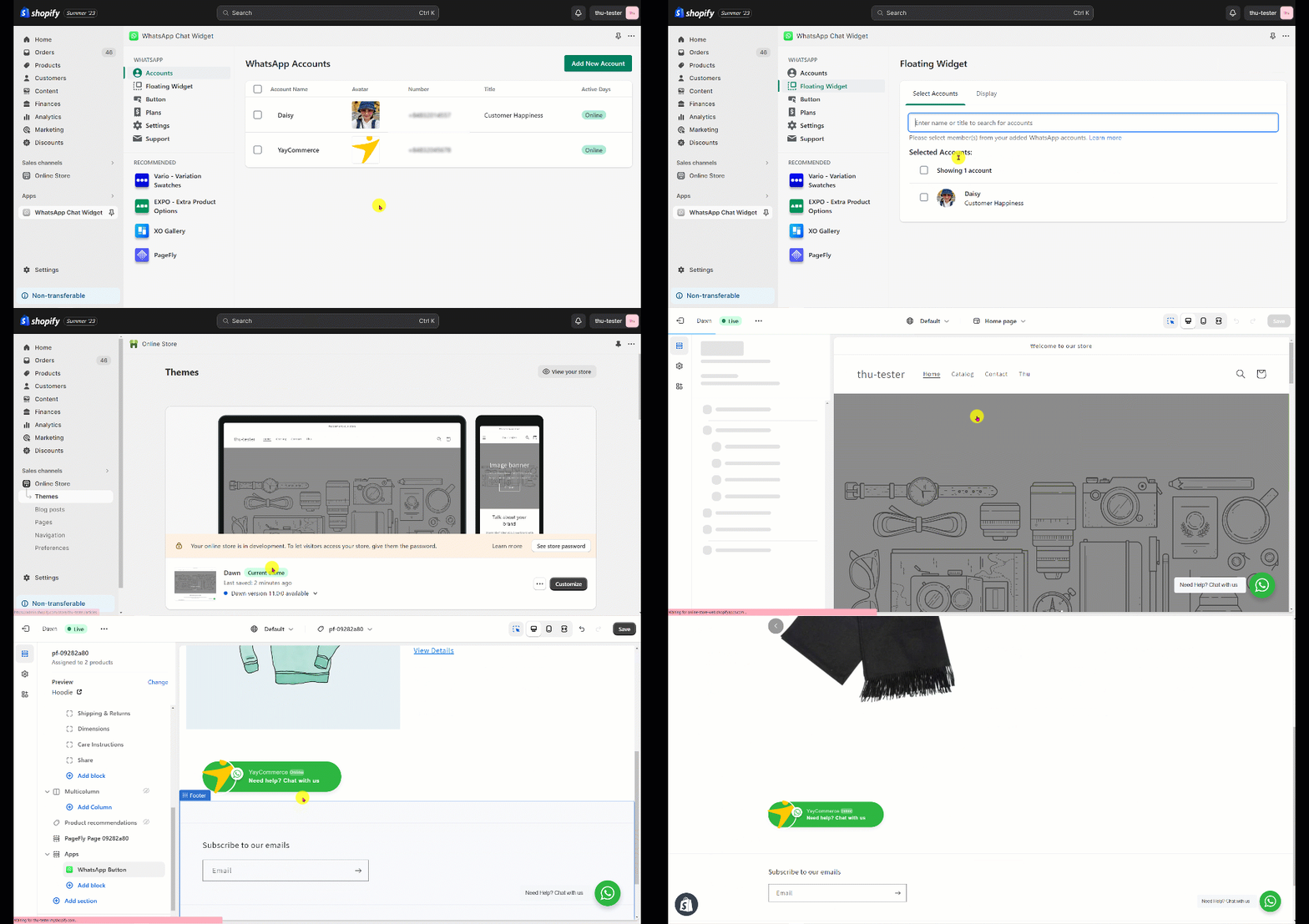
Setting up WhatsApp Chat Widget with PageFly
Here are the steps on how to set up WhatsApp Chat Widget with PageFly Shopify app.
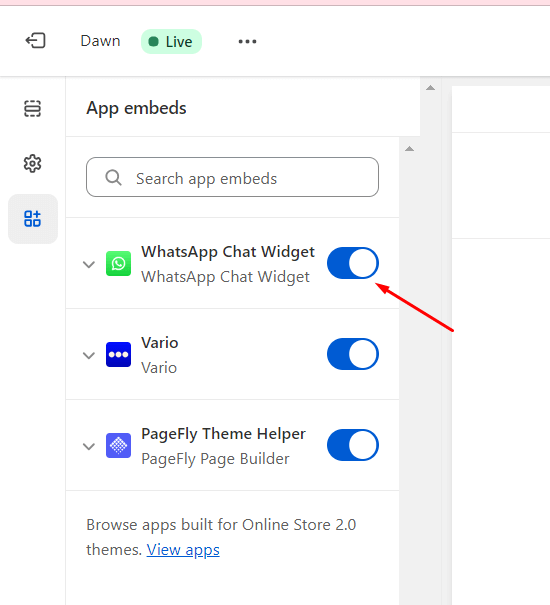
Step 1: Enable WhatsApp Chat Widget in app embeds
You can go to Online Store > Customize > App embeds > enable WhatsApp Chat Widget > Save.
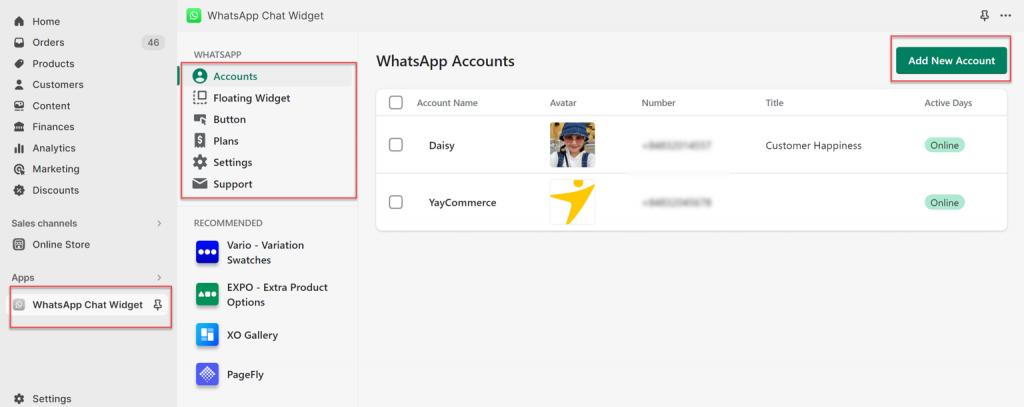
Step 2: Set up WhatsApp Chat for Shopify
You can set up all the agent accounts and behaviors in WhatsApp Chat Widget app settings.
Step 3: Add WhatsApp chat widget/button to PageFly
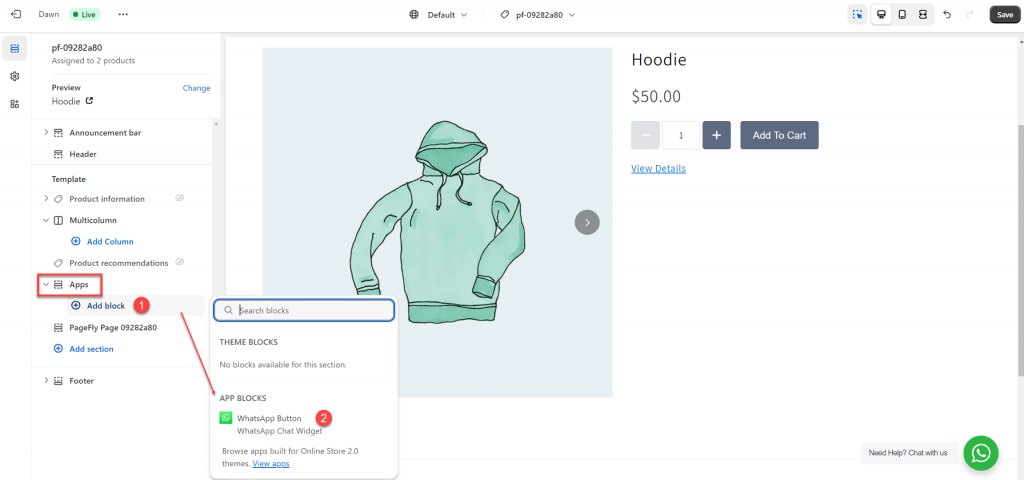
Choose a page template to assign the WhatsApp element.
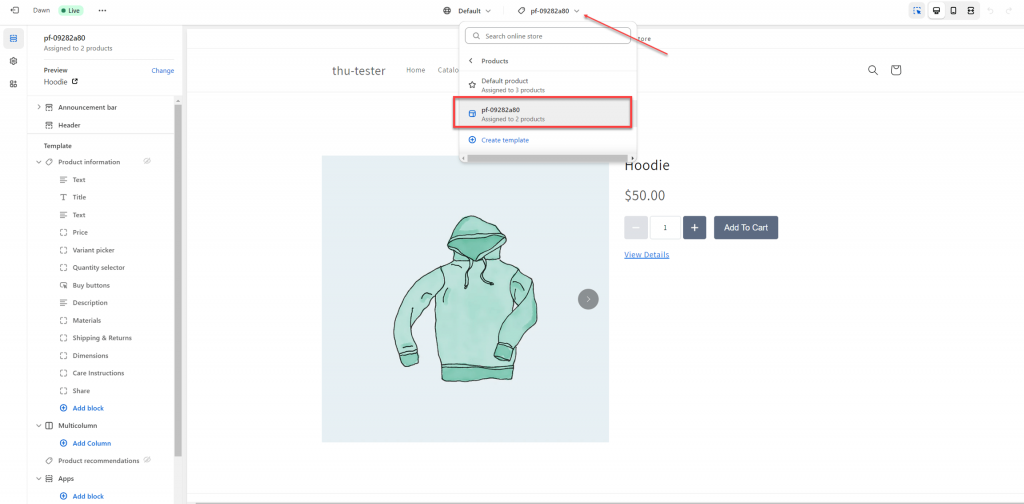
Add WhatsApp Button from the app blocks.
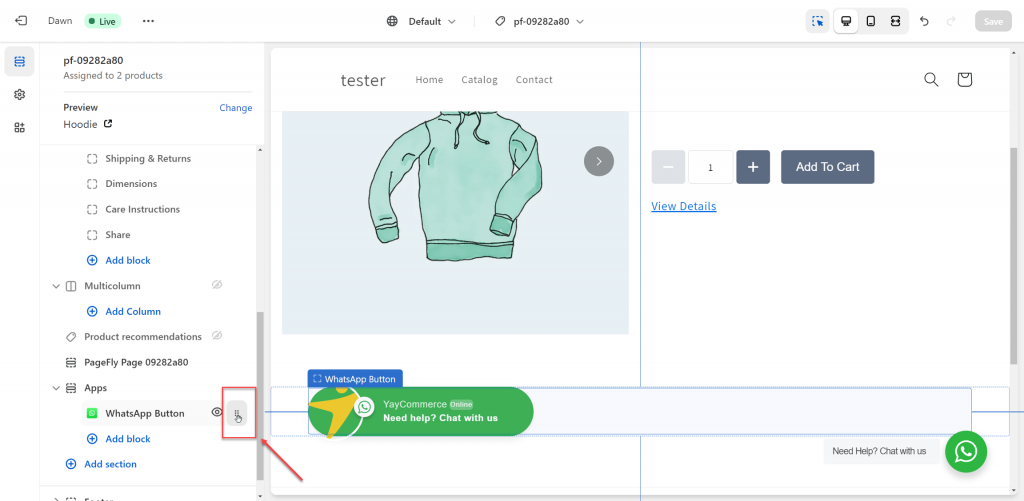
Drag and drop to position this click-to-chat WhatsApp button on the page.
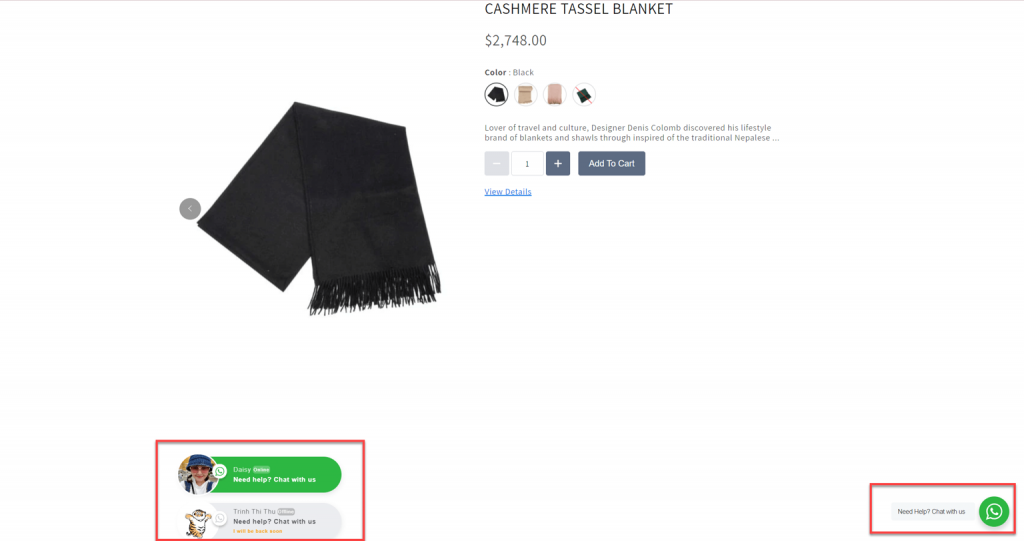
Here’s how the WhatsApp floating widget and buttons look on the product page.
Below you will find an animated GIF demonstrating the whole process of displaying WhatsApp Chat Widget in PageFly page templates.