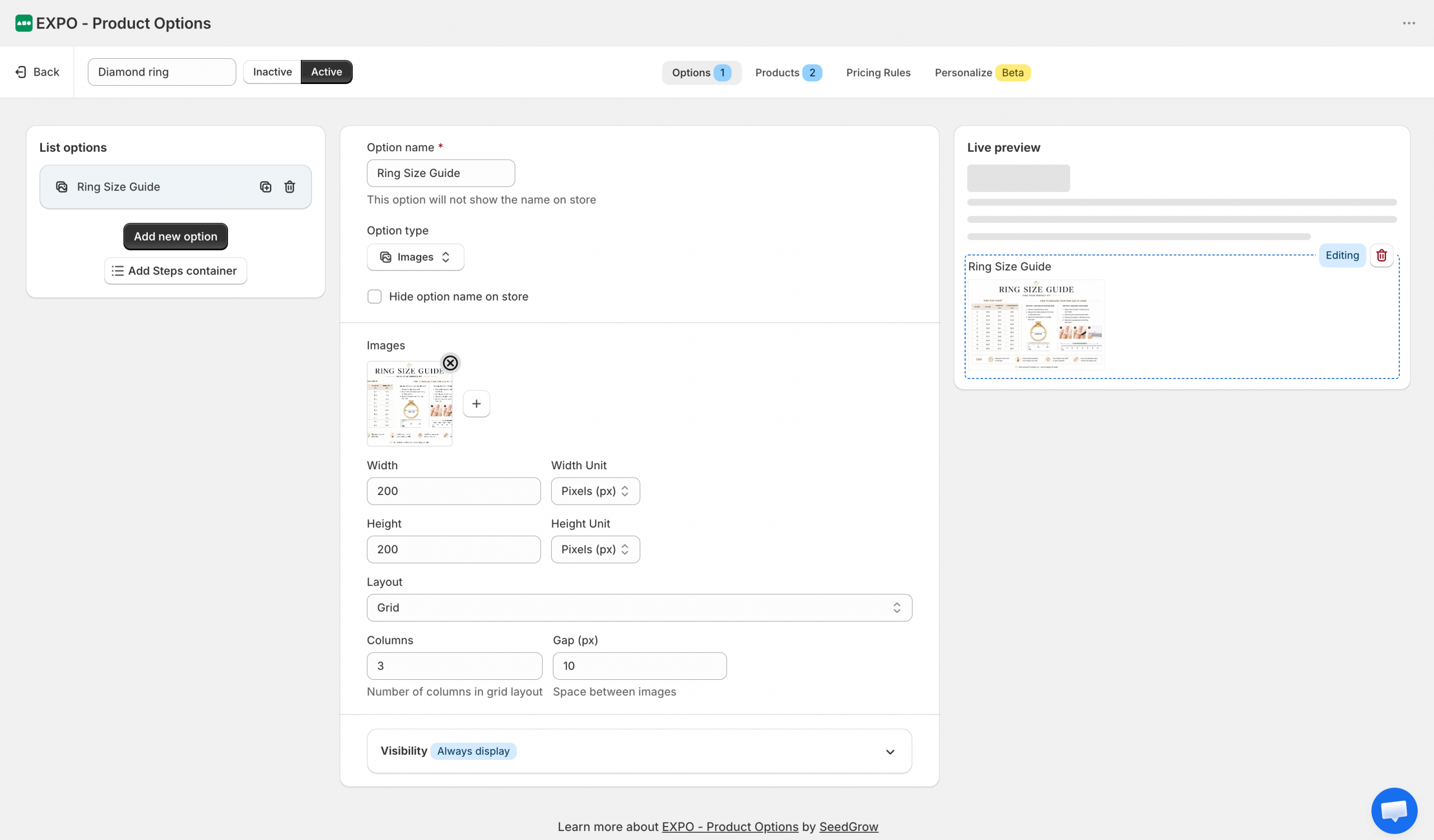
The Image option allows you to display one or more images directly on the product page. Unlike other option types, it does not collect customer input or affect the product configuration. Instead, it is designed to present visual information such as size charts, instructions, reference images, or promotional banners.
Basic settings
After adding an Image option to your option set, you can customize which images are displayed, their size, layout, and visibility settings.
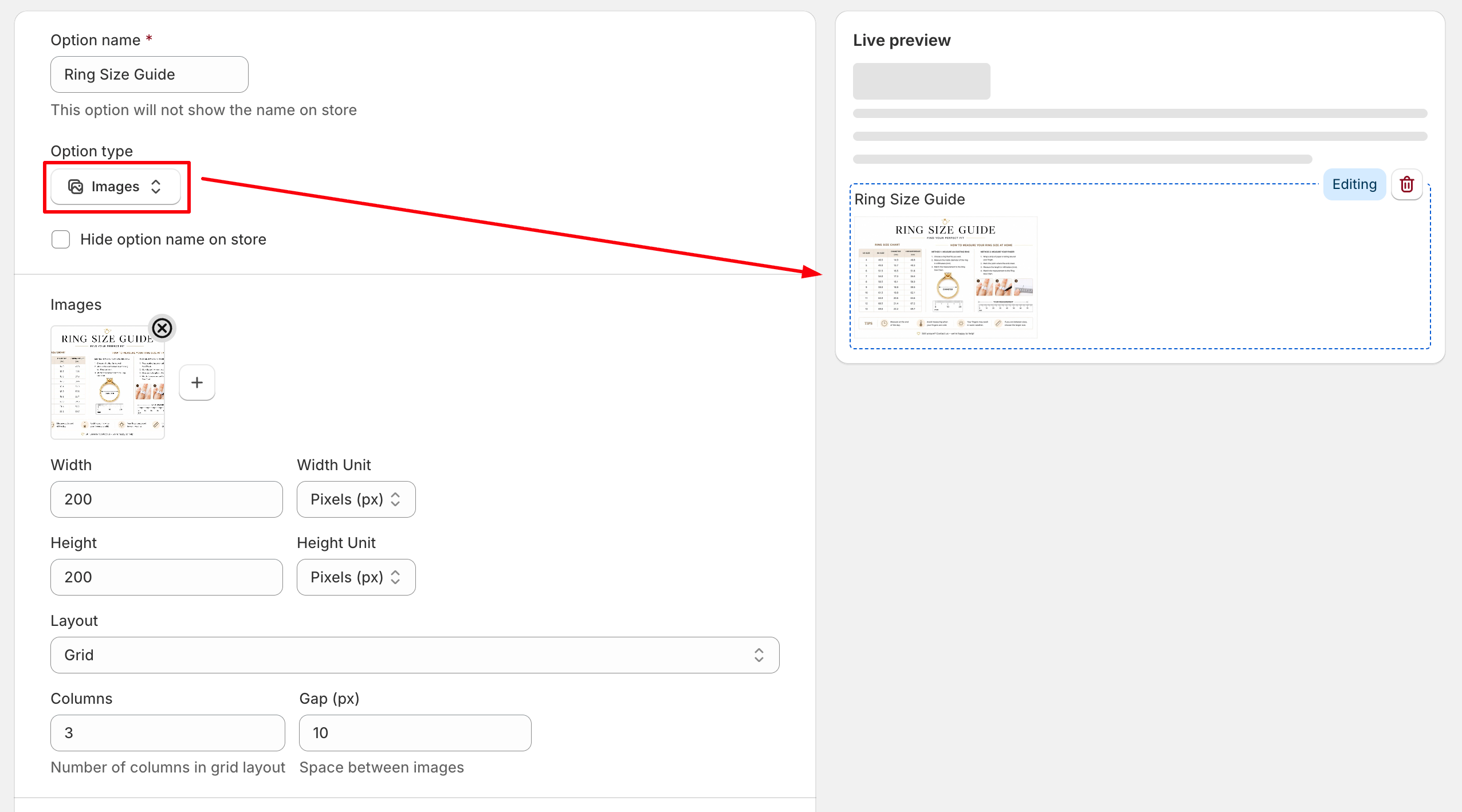
- Option name: The internal name of the option. By default, the option name is also displayed above the images.
- Hide option name on store: Hide the option label on the storefront while keeping the images visible.
- Images: Use this section to manage the images displayed on the storefront.
- Add image: Upload one or more images to display.
- Remove image: Delete an image from the gallery.
- Width: Set the display width for each image.
- Width Unit: Choose the unit used for the image width: Pixels (px), Percentage (%), Auto.
- Height: Set the display height for each image.
- Height Unit: Choose the unit used for the image height: Pixels (px), Percentage (%), Auto.
- Layout: Choose how images are arranged on the storefront.
- Grid: Displays images in a grid layout.
- List: Displays images in a vertical list.
- Columns: Specify the number of columns displayed when using the Grid layout.
- Gap: Set the spacing, in pixels, between images.
Visibility
Use visibility rules to control when this option is displayed.
You can show or hide the images based on other option selections or configured conditions.
Frontend display
On the storefront, the Image option displays the uploaded images using the configured layout.
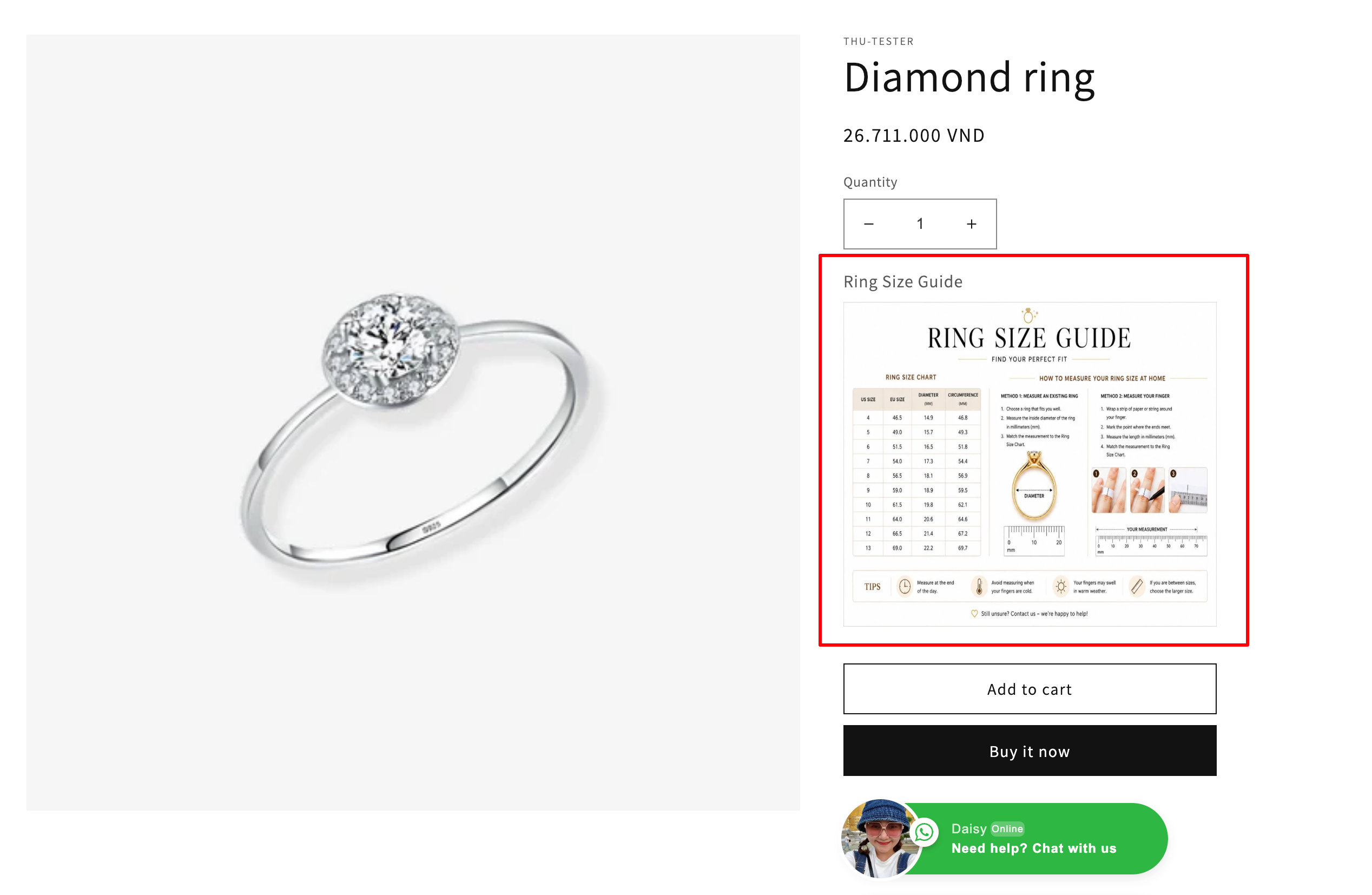
The appearance of the gallery is determined by the selected layout, image dimensions, number of columns, and spacing between images.
Need Help?
We’re here for you!
Reach out to our support team directly from your EXPO dashboard we usually reply within a few hours. Or email us at [email protected] with your store link and a short description of what you need.
No question is too small – whether it’s your first time setting up an option or you just need a quick tip, we’re happy to help.