The Steps Layout helps organize product options into a step-by-step configurator.
Instead of showing all options at once, customers complete one step at a time and move through the configuration using navigation buttons. This creates a cleaner buying experience and is especially useful for products with many customization options.
Create a Steps container
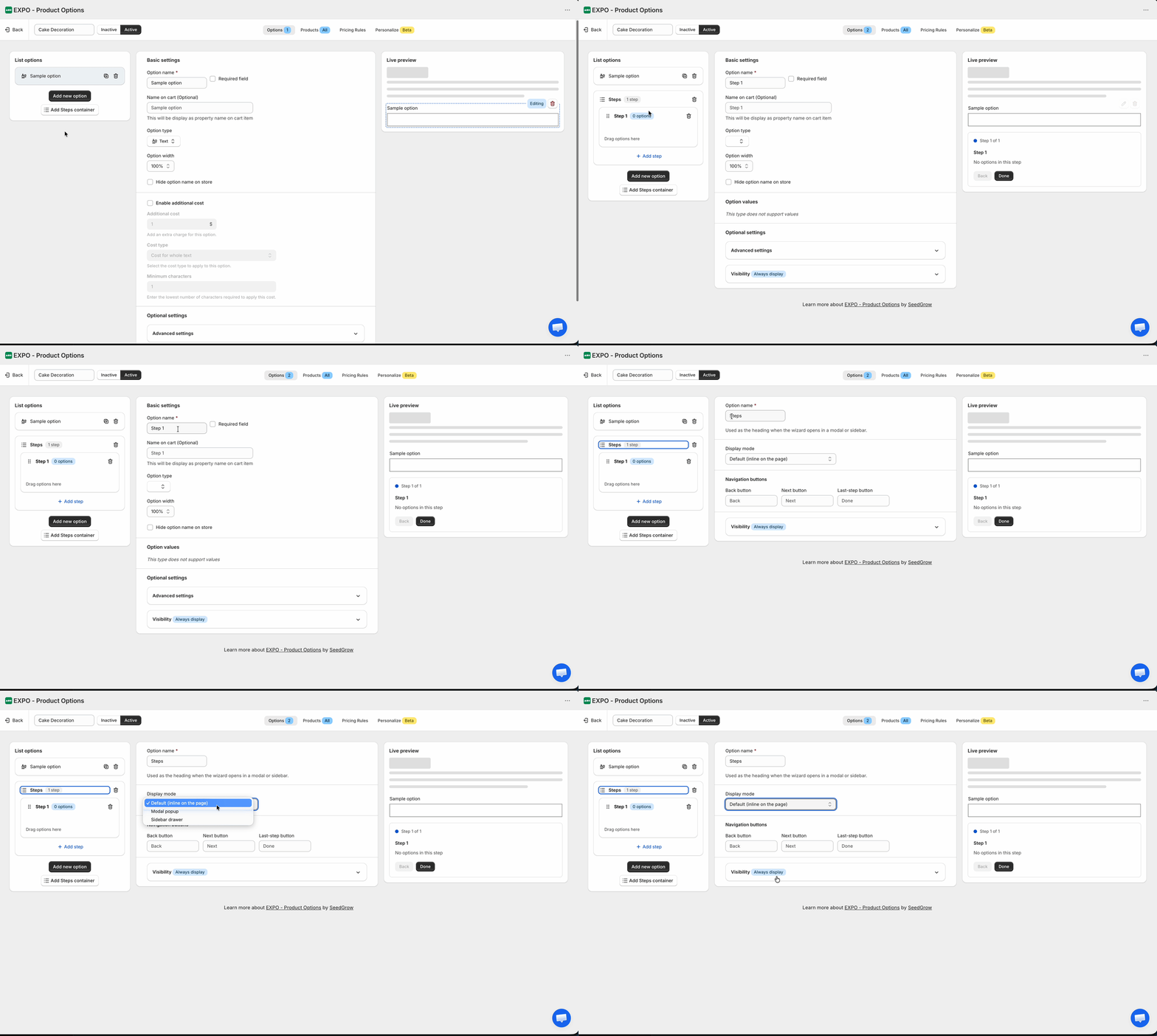
In the Option Set editor, click Add Steps container.
A new Steps container will be added to the option list.
Display modes
Choose how the configurator is displayed on the product page.
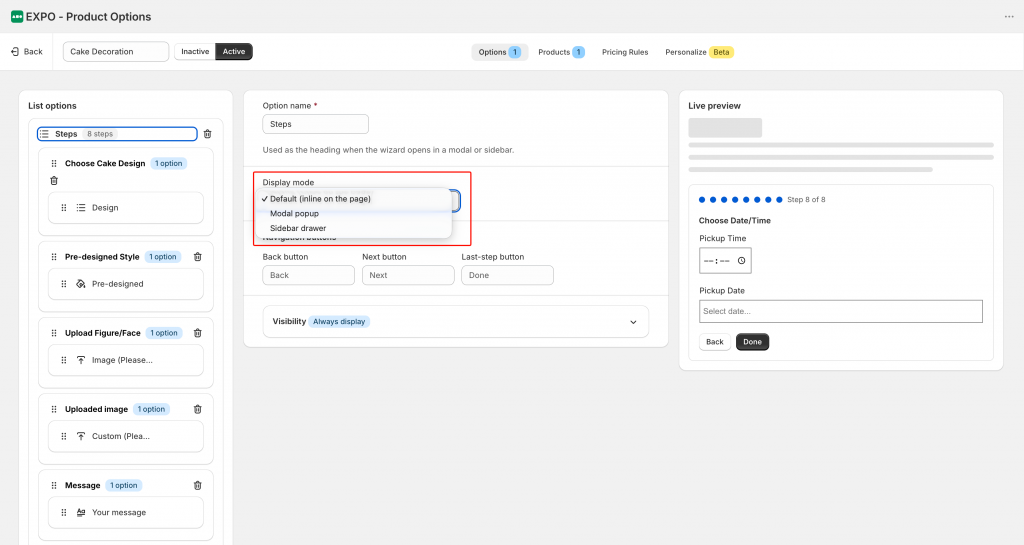
- Default (inline on the page): Display the step-by-step configurator directly within the product form.
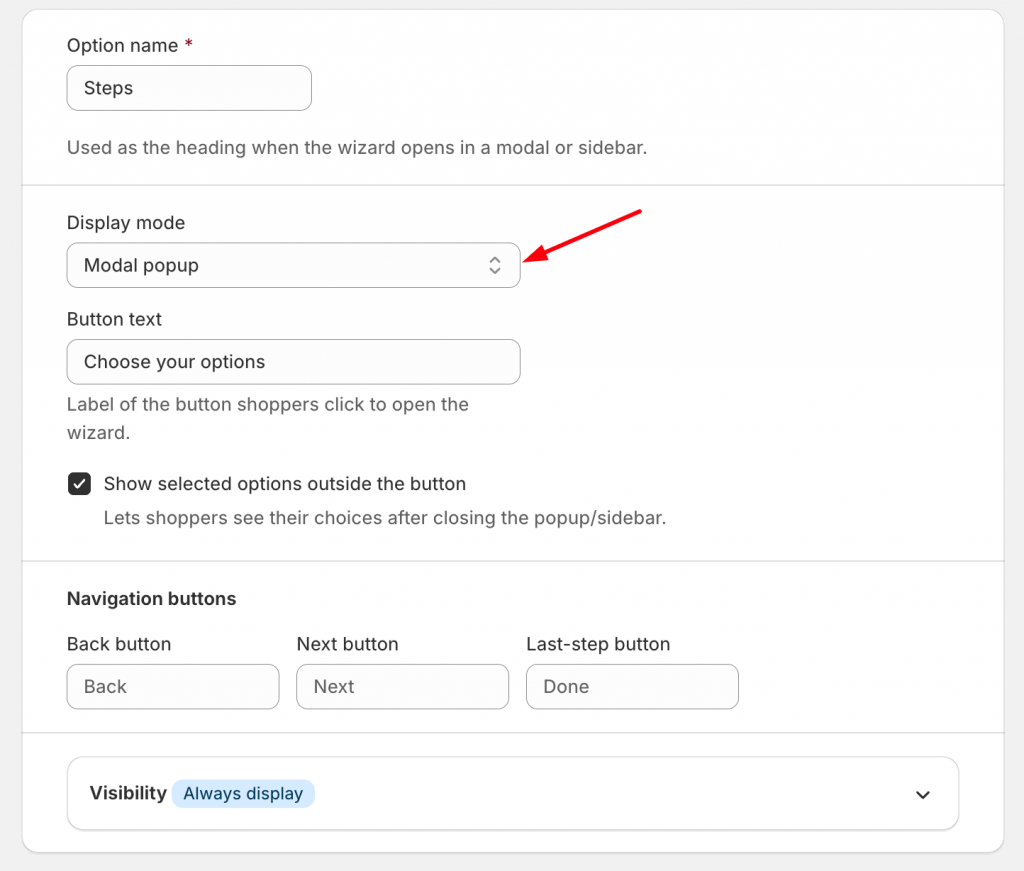
- Modal popup: Display a button that opens the configurator in a popup window. You can customize the button text and optionally show selected options outside the button after the popup is closed.
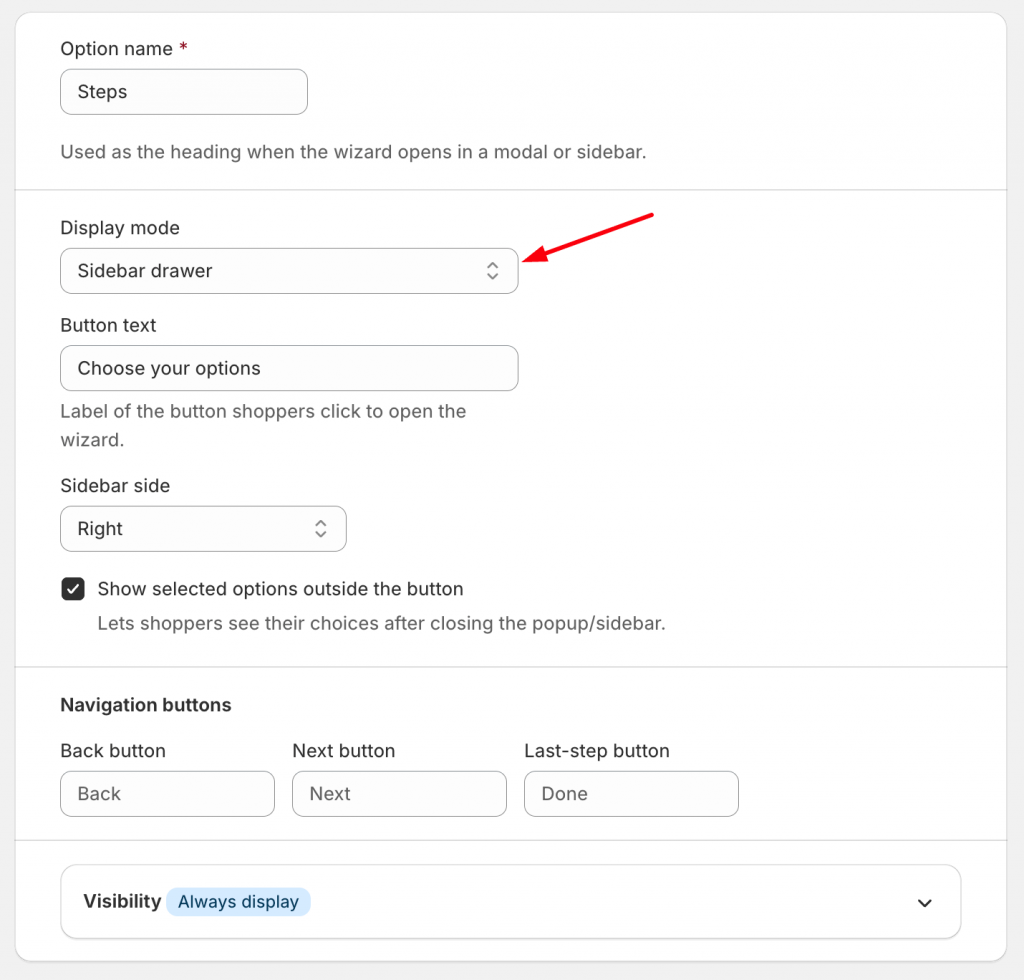
- Sidebar drawer: Display a button that opens the configurator in a sliding sidebar. You can customize the button text, choose whether the sidebar appears on the left or right side of the screen, and optionally show selected options outside the button after the sidebar is closed.
Configure navigation buttons
The Steps container includes customizable navigation buttons:
- Back button
- Next button
- Last-step button
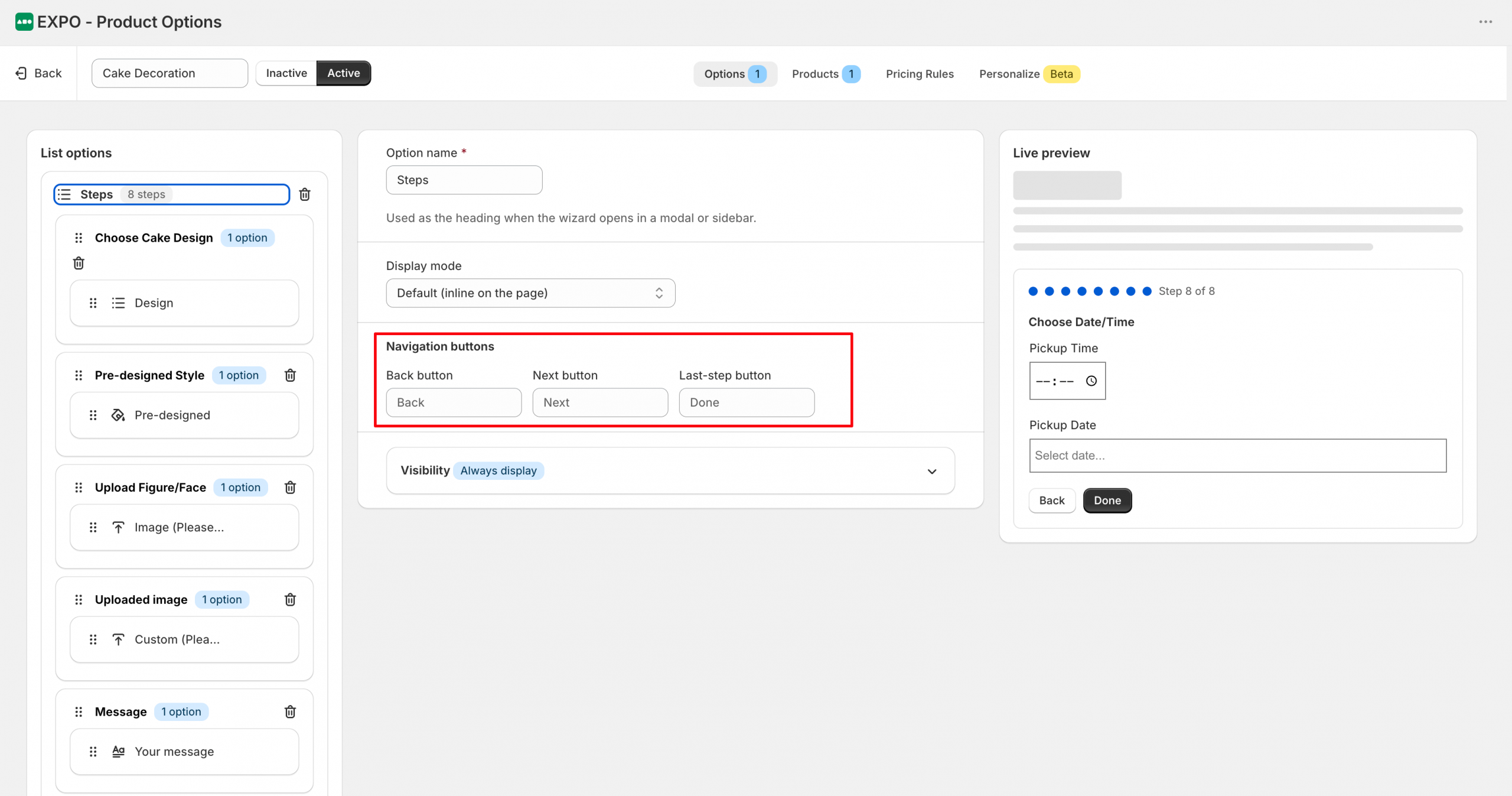
You can change the button labels to match your store language and customer experience.
Add steps
Click Add step to create as many steps as needed.
Each step acts as a separate stage in the configuration process.
For example:
- Step 1: Design
- Step 2: Pre-designed templates
- Step 3: Upload image
- Step 4: Custom design
- Step 5: Message
- Step 6: Accessories
- Step 7: Packaging
- Step 8: Pickup information
Move options into steps
Drag existing options into the desired step.
Each step can contain one or multiple options.
The order of the steps determines the order customers will follow on the product page.
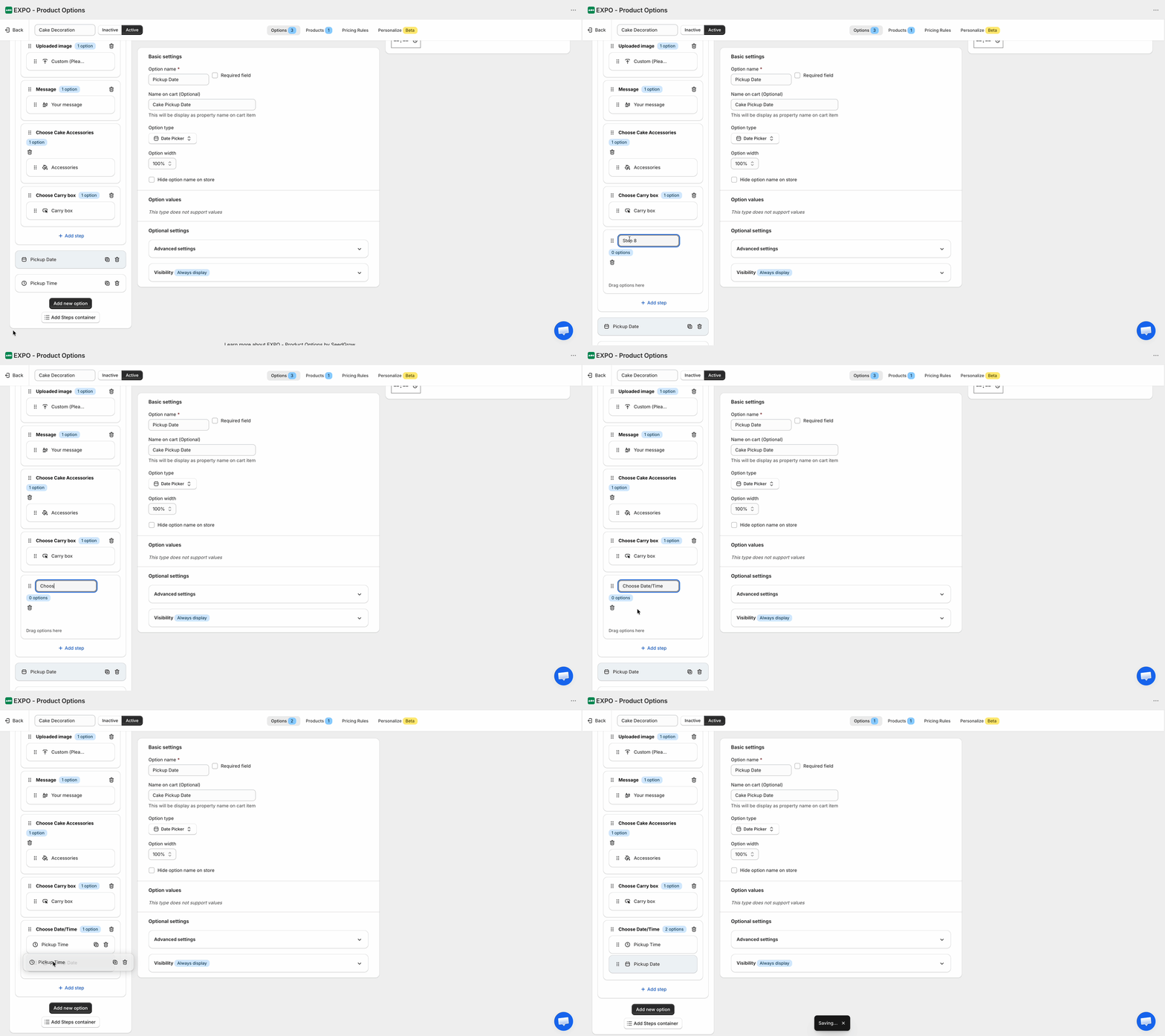
The step progress indicator helps shoppers track their progress throughout the configuration process. Required options must be completed before moving to the next step.
Need Help?
We’re here for you!
Reach out to our support team directly from your EXPO dashboard we usually reply within a few hours. Or email us at [email protected] with your store link and a short description of what you need.
No question is too small – whether it’s your first time setting up an option or you just need a quick tip, we’re happy to help.