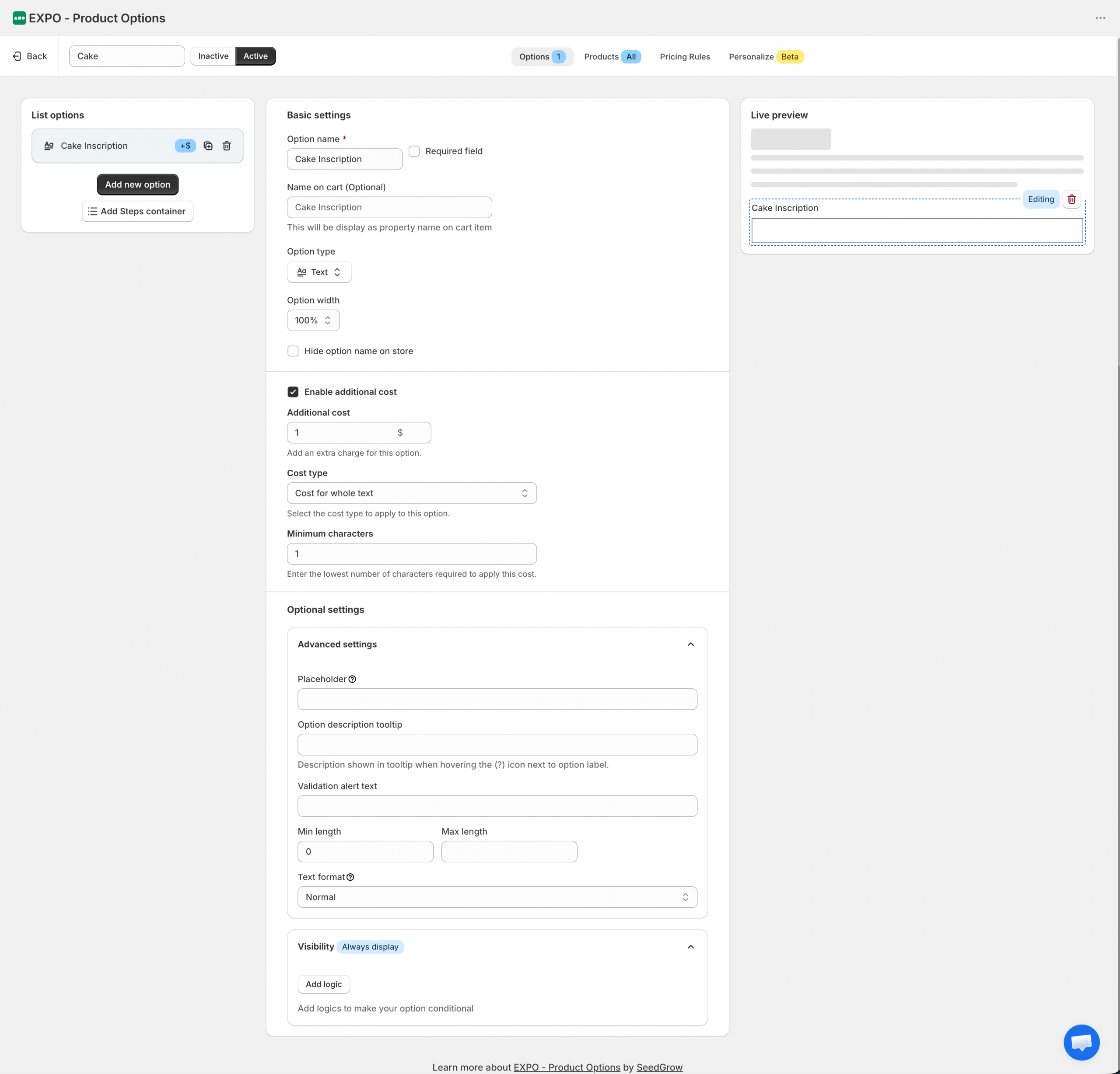
- Text: This type allows a client to enter text, including numbers, in the input text field, and it is used for one-line text only. This option is perfect for personalization needs such as engraving, printing names, gift messages, or any other free-form input customers provide before adding a product to their cart.
- Text Area: The Text Area option works just like the Text option, but instead of a single line, it gives customers a larger box where they can enter multiple lines of text – perfect for longer messages or special instructions.
With the Text Option Type, Shopify store can offer a more personalized shopping experience while capturing essential customer details directly at the point of purchase.
Configuration
After adding a Text option to your option set, you can customize its behavior, appearance, pricing, and validation settings.
Basic settings
The Basic settings section controls how the option is displayed and identified throughout the store.
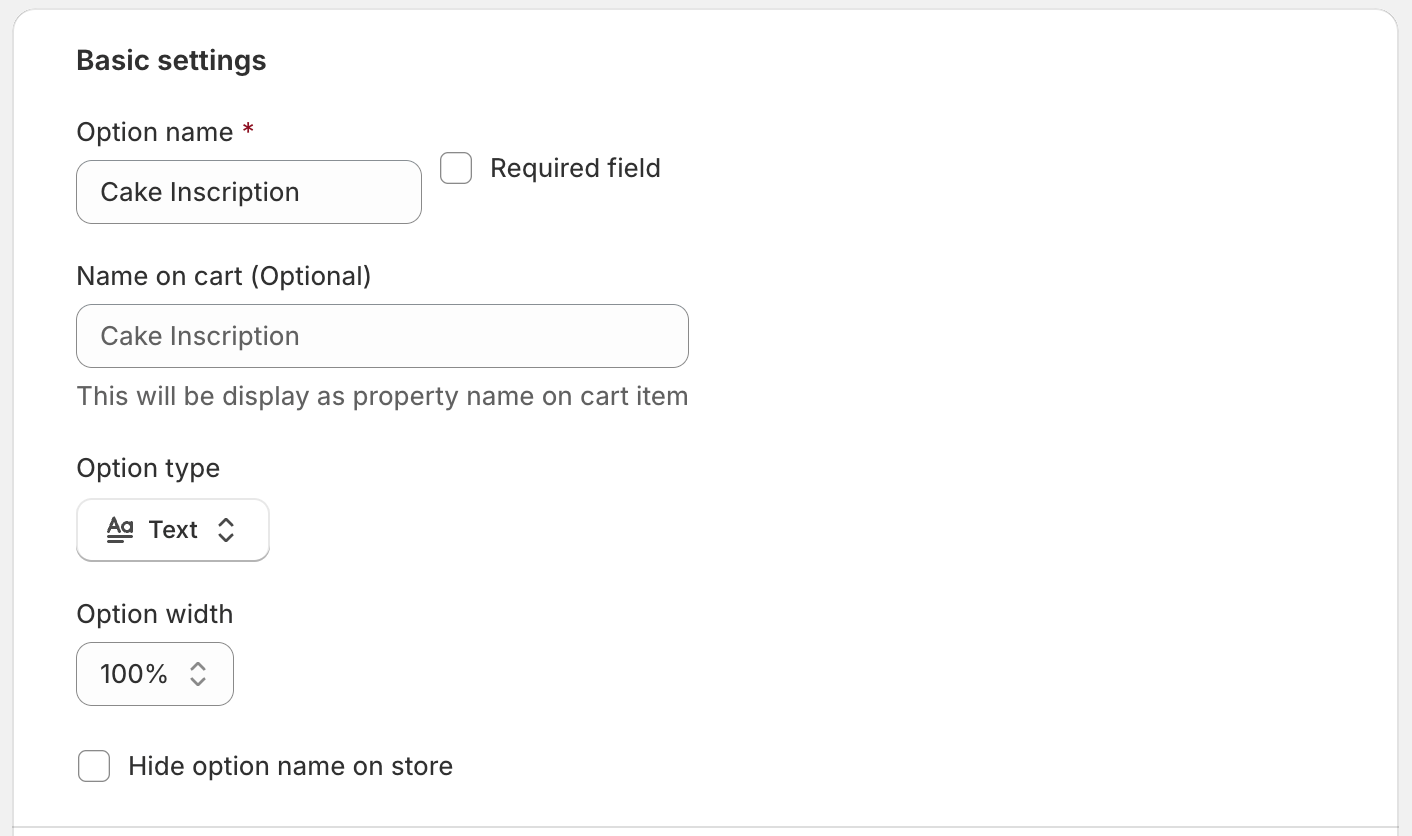
- Option name: The label displayed to shoppers on the storefront.
- Required field: Require shoppers to enter a value before adding the product to the cart.
- Name on cart: Customize how this option appears in the cart, checkout, and order details. If left empty, the Option name will be used.
- Option width: Control how much horizontal space the option occupies within the product form. You can choose: 25%, 50%, 75%, 100%^.
- Hide option name on store: Hide the option label on the storefront while keeping the input field visible.
Additional cost
Enable additional charges based on the shopper’s input.
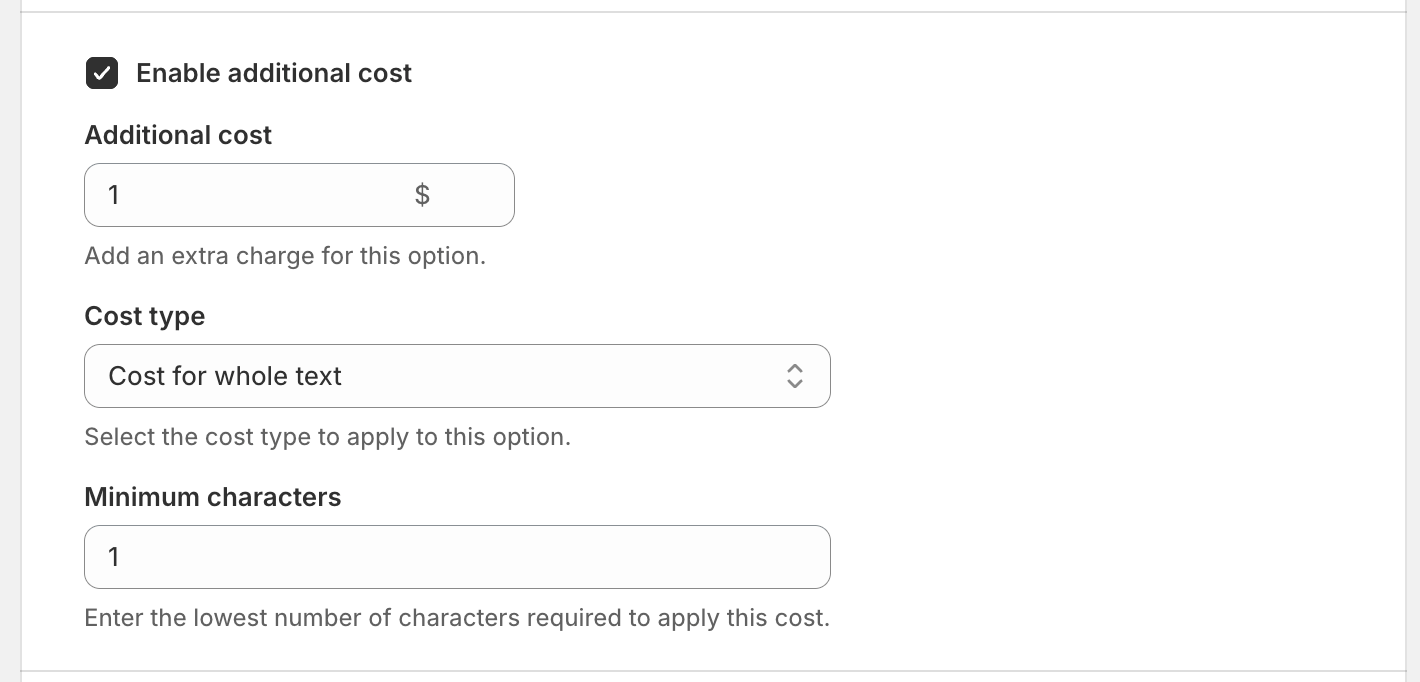
- Additional cost: The amount added when the pricing condition is met.
- Cost type: Choose how the additional cost is calculated.
- Cost for whole text: Apply the cost once when the minimum character requirement is met.
- Cost per character: Apply the cost for each character entered.
- Cost per extra character: Apply the cost only to characters that exceed the minimum character requirement.
- Minimum characters: The minimum number of characters required before the additional cost is applied.
Optional settings
Expand this section to access advanced configuration and visibility settings.
Advanced settings
Configure placeholder text, validation rules, and input restrictions.
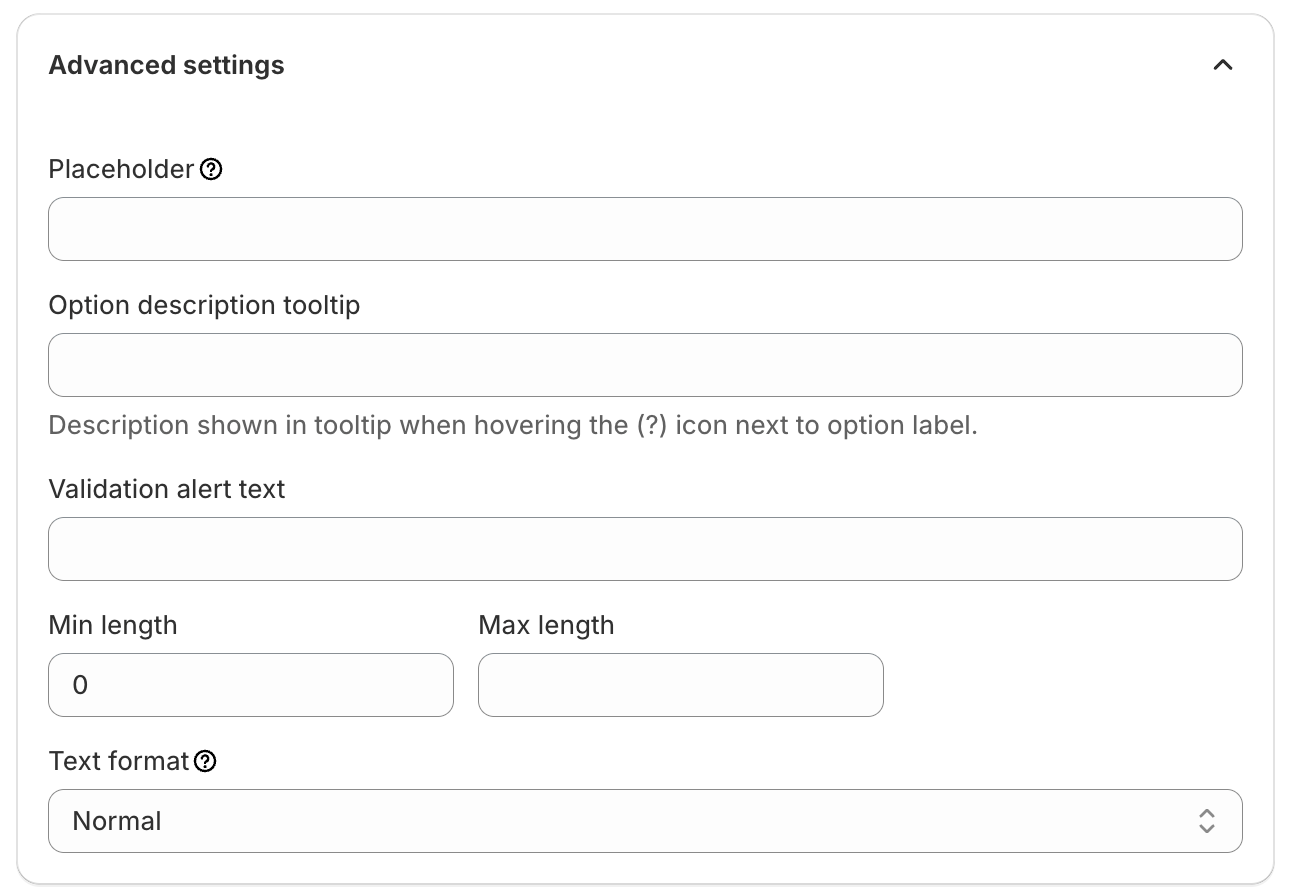
- Placeholder: Display helper text inside the input field before a value is entered.
- Option description tooltip: Display additional information when shoppers hover over the tooltip icon next to the option label.
- Validation alert text: Custom error message displayed when validation requirements are not met.
- Min length: The minimum number of characters allowed.
- Max length: The maximum number of characters allowed.
- Text format: Control which characters shoppers are allowed to enter: Normal, Email, URL/Link.
Visibility
Use visibility rules to control when this option is displayed.
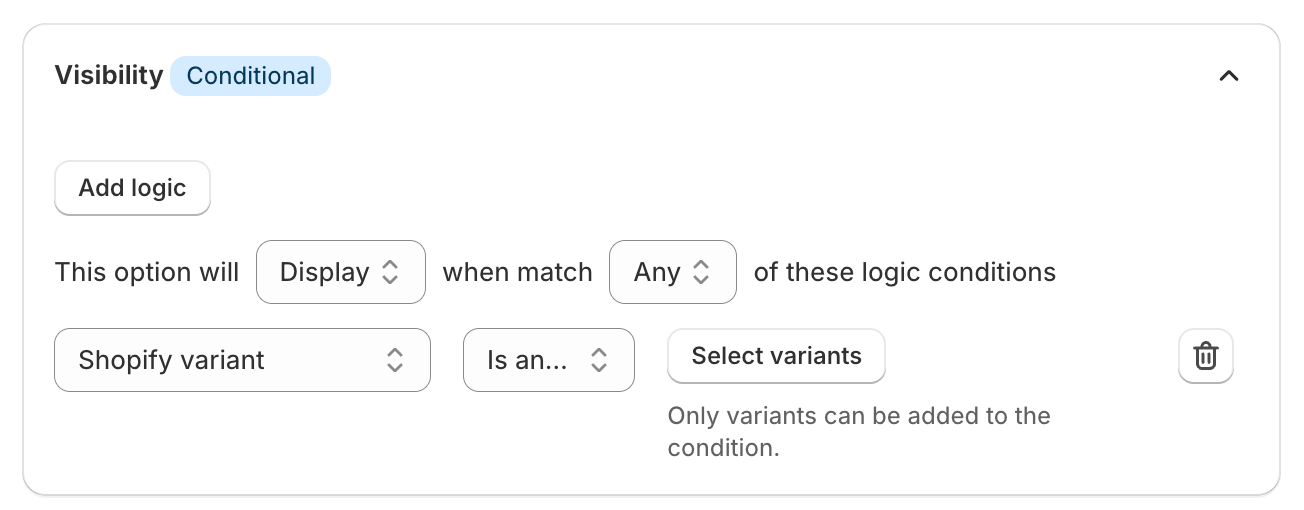
You can show or hide the option based on other option selections or configured conditions.
Frontend display
On the storefront, the Text option appears as either a single-line text field or a multi-line text area, depending on the selected option type.
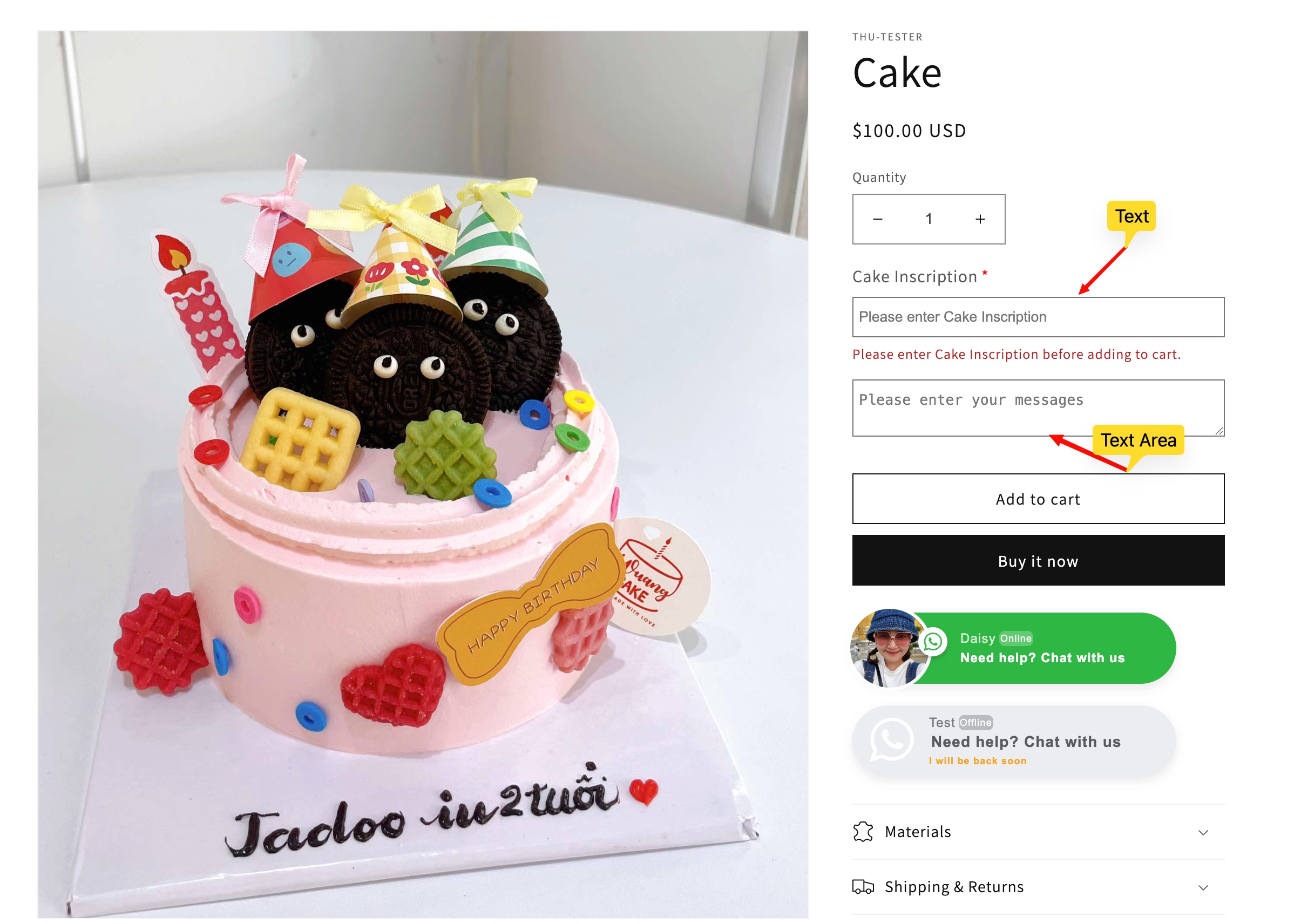
Shoppers can enter custom information directly into the field. If validation rules are configured, EXPO validates the input before the product can be added to the cart.
If additional pricing is enabled, the product price is automatically updated based on the configured cost settings.
Need Help?
We’re here for you!
Reach out to our support team directly from your EXPO dashboard we usually reply within a few hours. Or email us at [email protected] with your store link and a short description of what you need.
No question is too small – whether it’s your first time setting up an option or you just need a quick tip, we’re happy to help.