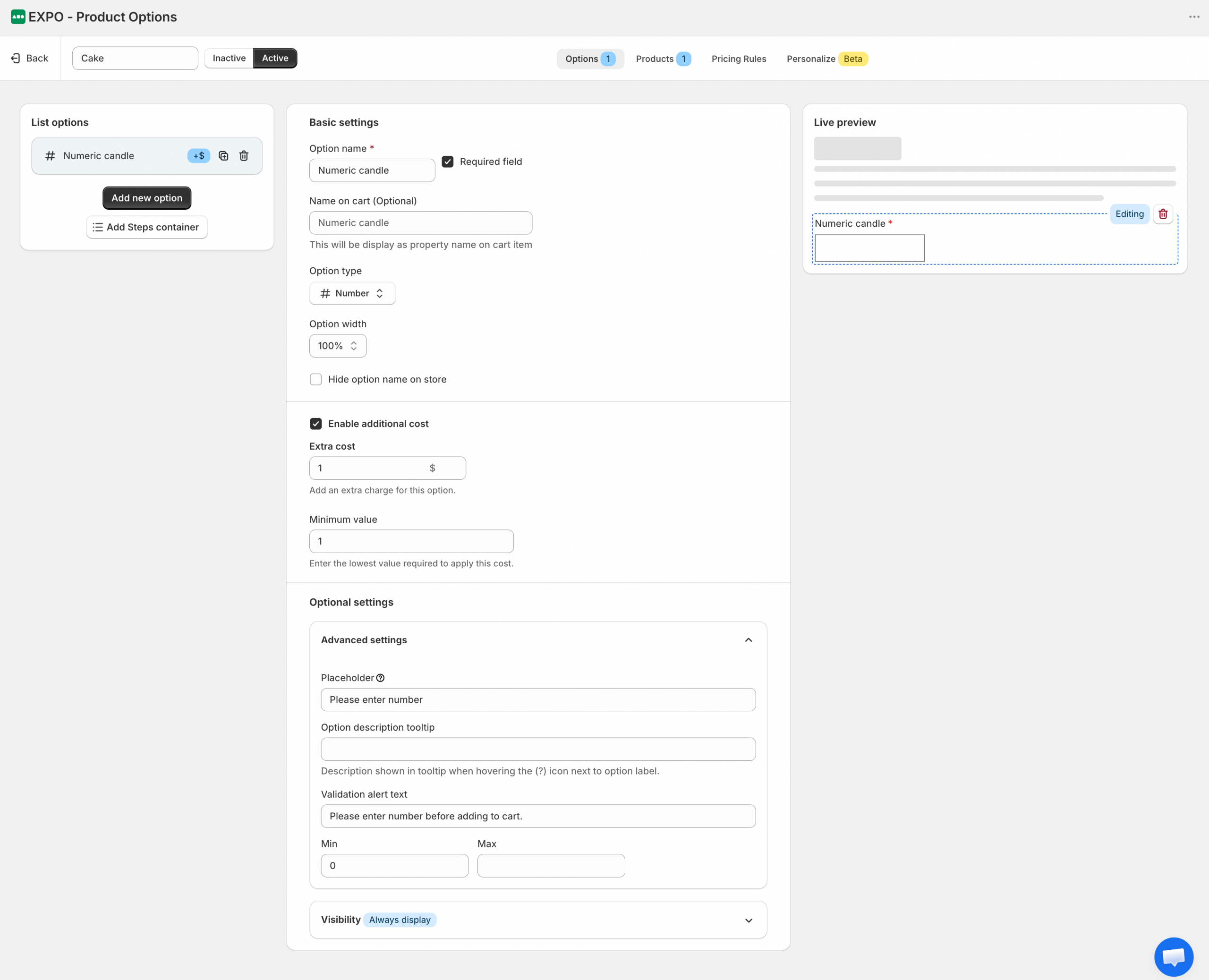
The Number Option Type allows customers to enter a numeric value directly on your product page. This is useful whenever you want to collect quantities, measurements, or any other numeric input instead of free-form text.
Unlike text fields, the number option ensures customers only enter digits, keeping your order data neat and accurate.
Configuration
After adding a Number option to your option set, you can customize its behavior, appearance, pricing, and validation settings.
Basic settings
The Basic settings section controls how the option is displayed and identified throughout the store.
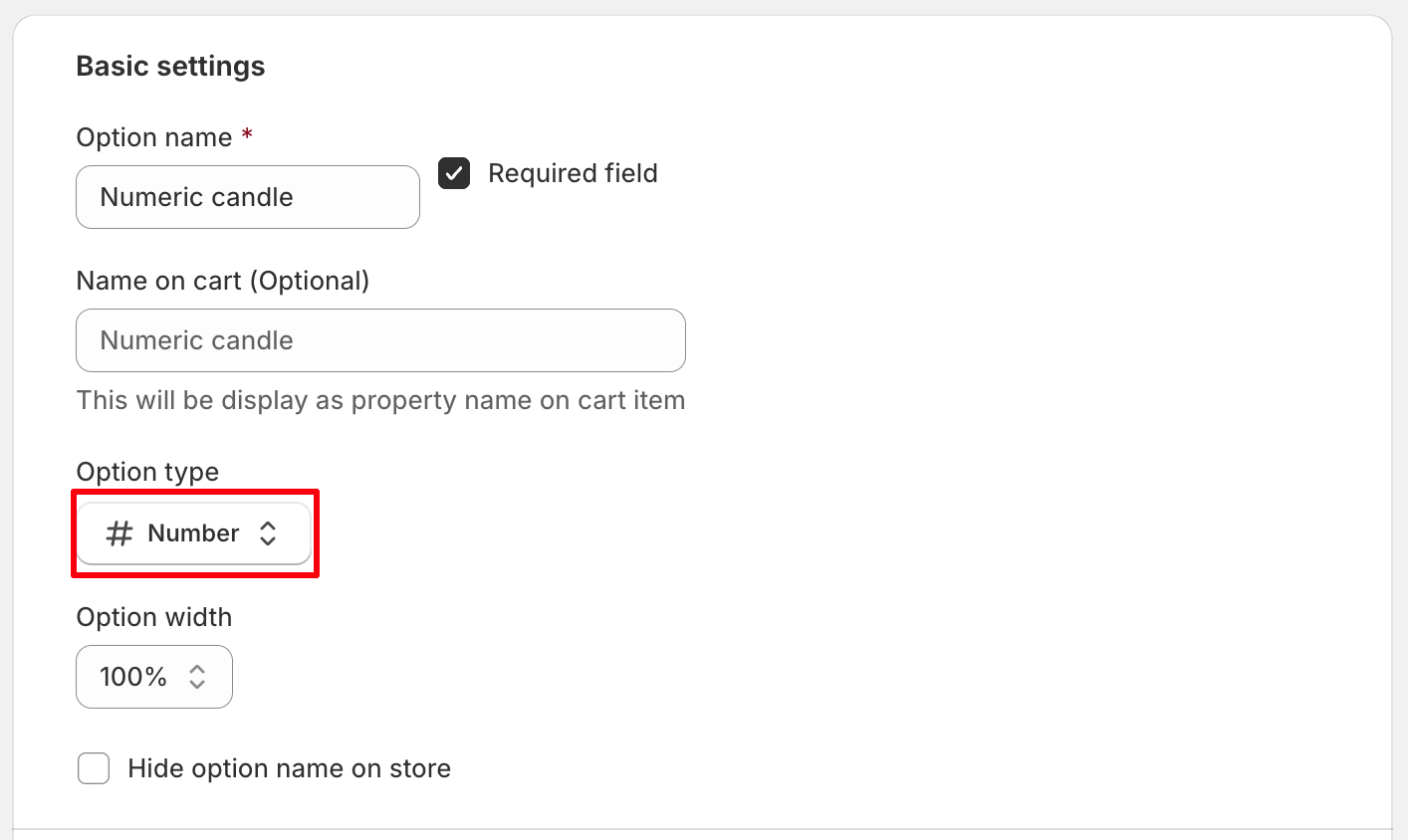
- Option name: The label displayed to shoppers on the storefront.
- Required field: Require shoppers to enter a value before adding the product to the cart.
- Name on cart: Customize how this option appears in the cart, checkout, and order details. If left empty, the Option name will be used.
- Option width: Control how much horizontal space the option occupies within the product form. You can choose: 25%, 50%, 75%, 100%^.
- Hide option name on store: Hide the option label on the storefront while keeping the input field visible.
Additional cost
The Extra Cost for Number Field feature allows you to dynamically increase product prices based on a number entered by the customer.
Instead of fixed pricing, your store can now calculate extra costs per custom input – fully automated and transparent.
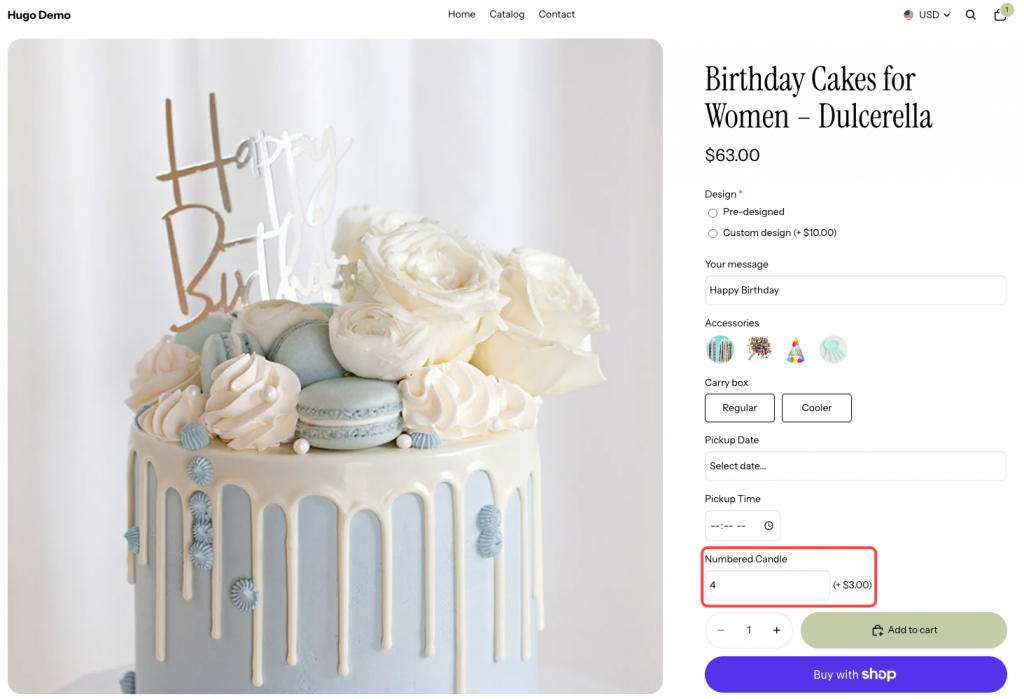
Let’s say you sell numbered candles, and customers can request a specific number according to their needs.
- Customers enter the number of candles they want
- The final price adjusts automatically based on their input
How to configure this feature in the EXPO Option Dashboard.
In the Number option type, you will now see the Enable additional cost section. Here you can enter the cost, for example: $3 per candle.
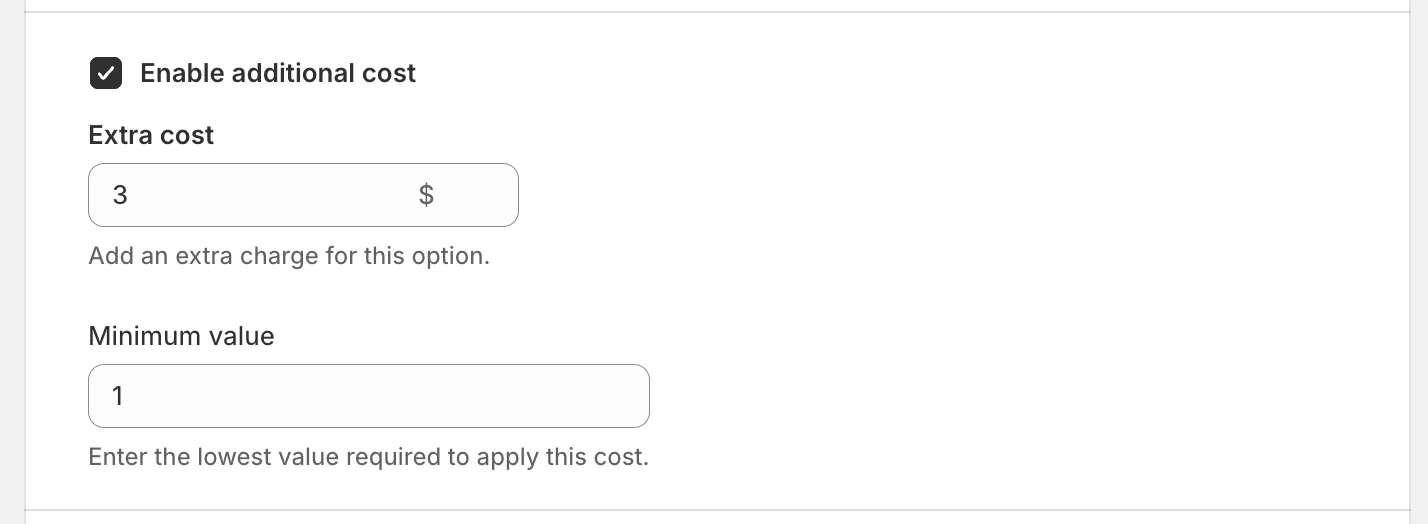
And preview the product on your storefront.
Optional settings
Expand this section to access advanced configuration and visibility settings.
Advanced settings
Configure placeholder text, validation rules, and input restrictions.
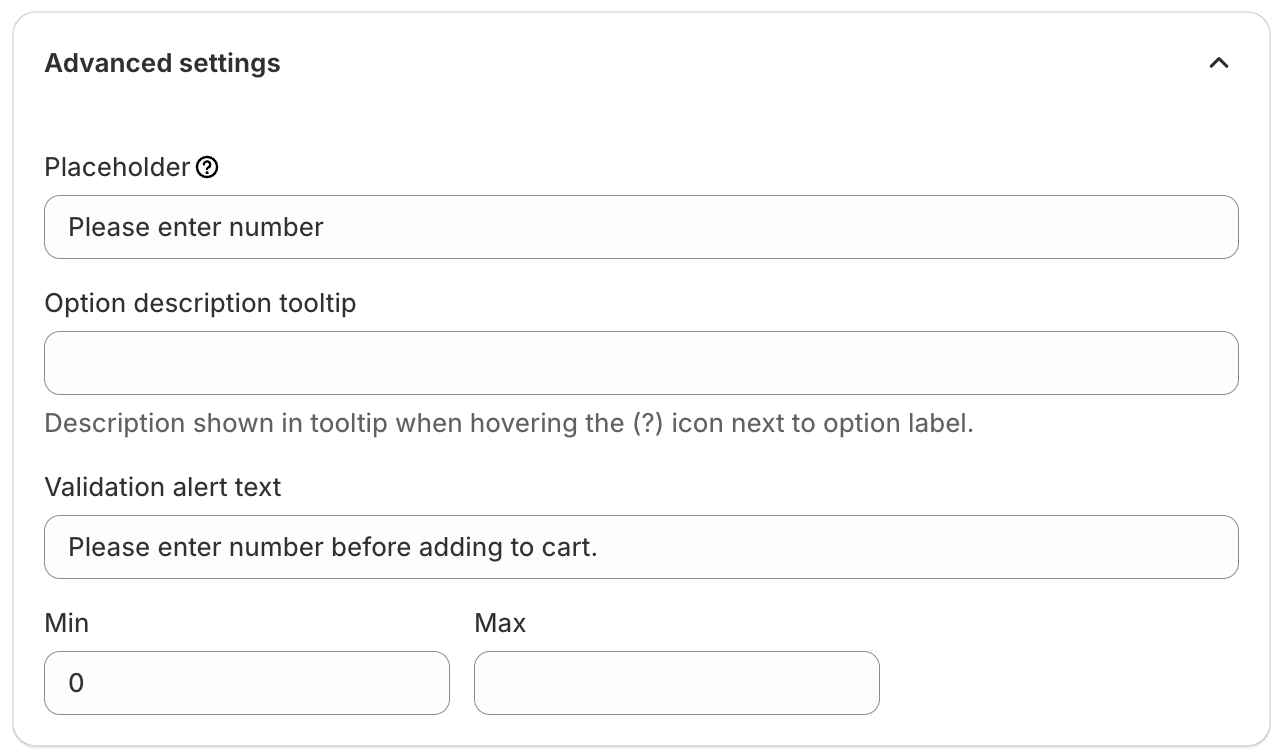
- Placeholder: Display helper text inside the input field before a value is entered.
- Option description tooltip: Display additional information when shoppers hover over the tooltip icon next to the option label.
- Validation alert text: Custom error message displayed when validation requirements are not met.
- Min: The minimum number allowed.
- Max: The maximum number allowed.
Need Help?
We’re here for you!
Reach out to our support team directly from your EXPO dashboard we usually reply within a few hours. Or email us at [email protected] with your store link and a short description of what you need.
No question is too small – whether it’s your first time setting up an option or you just need a quick tip, we’re happy to help.