This guide covers adding the Widerruf Button (Customer Account) block to your Shopify store’s Order Status page using the theme editor.
Go to Customize
Go to your Shopify Admin → Online Store → Themes, then click Edit theme on your active theme.
Add EU Widerruf App Block
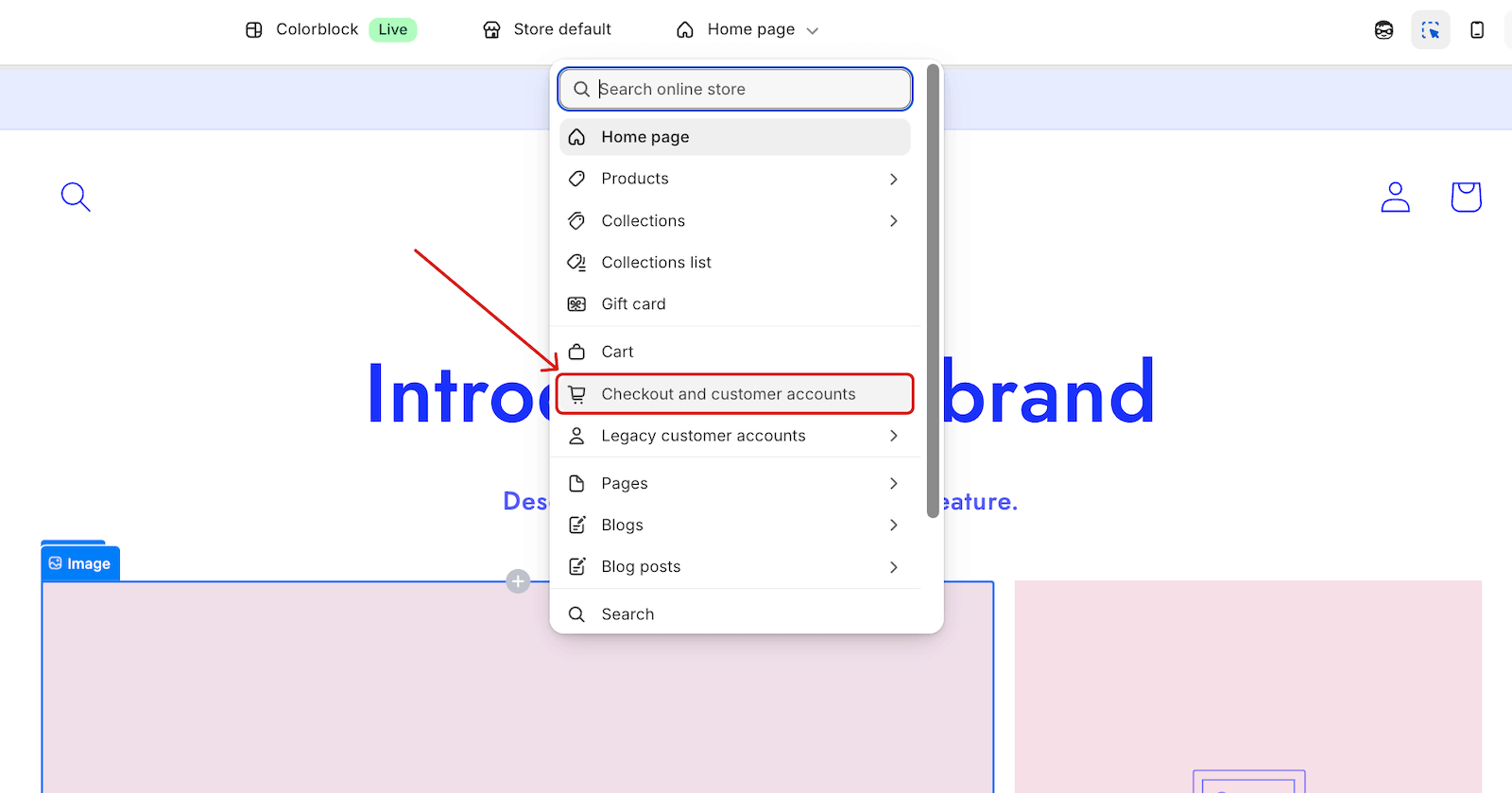
On the top page selector, click on Checkout and customer accounts.
In the left sidebar, click Apps to open the app blocks panel.
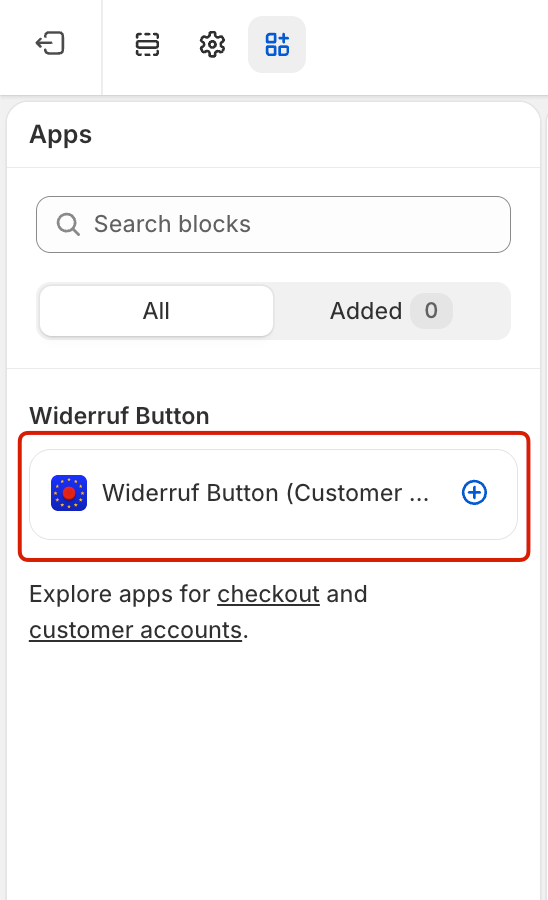
You’ll see a search bar labeled Search blocks. Type Widerruf to locate the Widerruf Button (Customer Account) block.
Add it to the Order Status page. You should see it appear in the editor preview as a “Right of Withdrawal” section with a Withdraw from contract button.
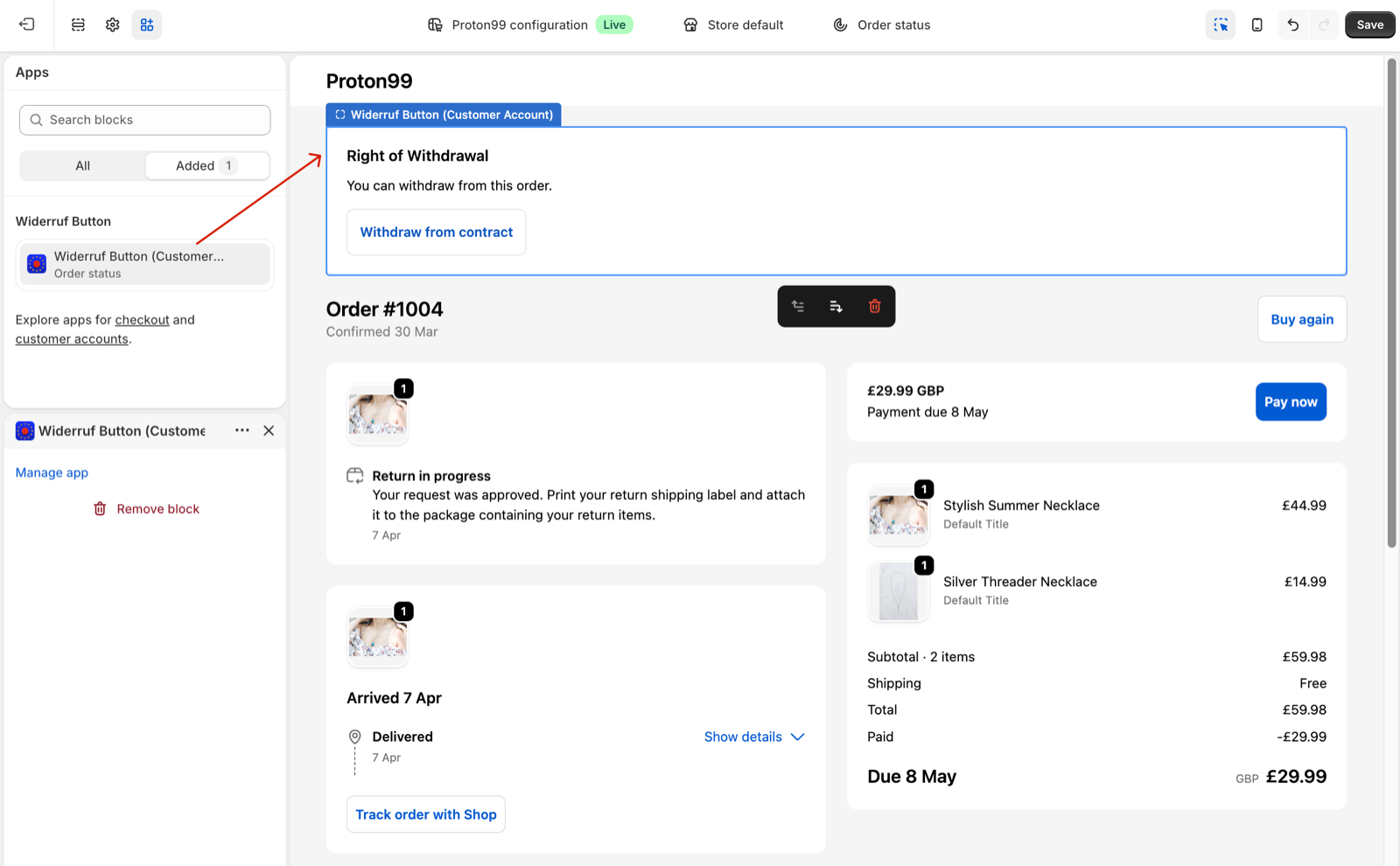
Position the Widerruf Block
Move the block up or down to reposition it on the page.
For example, above the order details for better visibility, or below tracking information for a more intuitive interface.
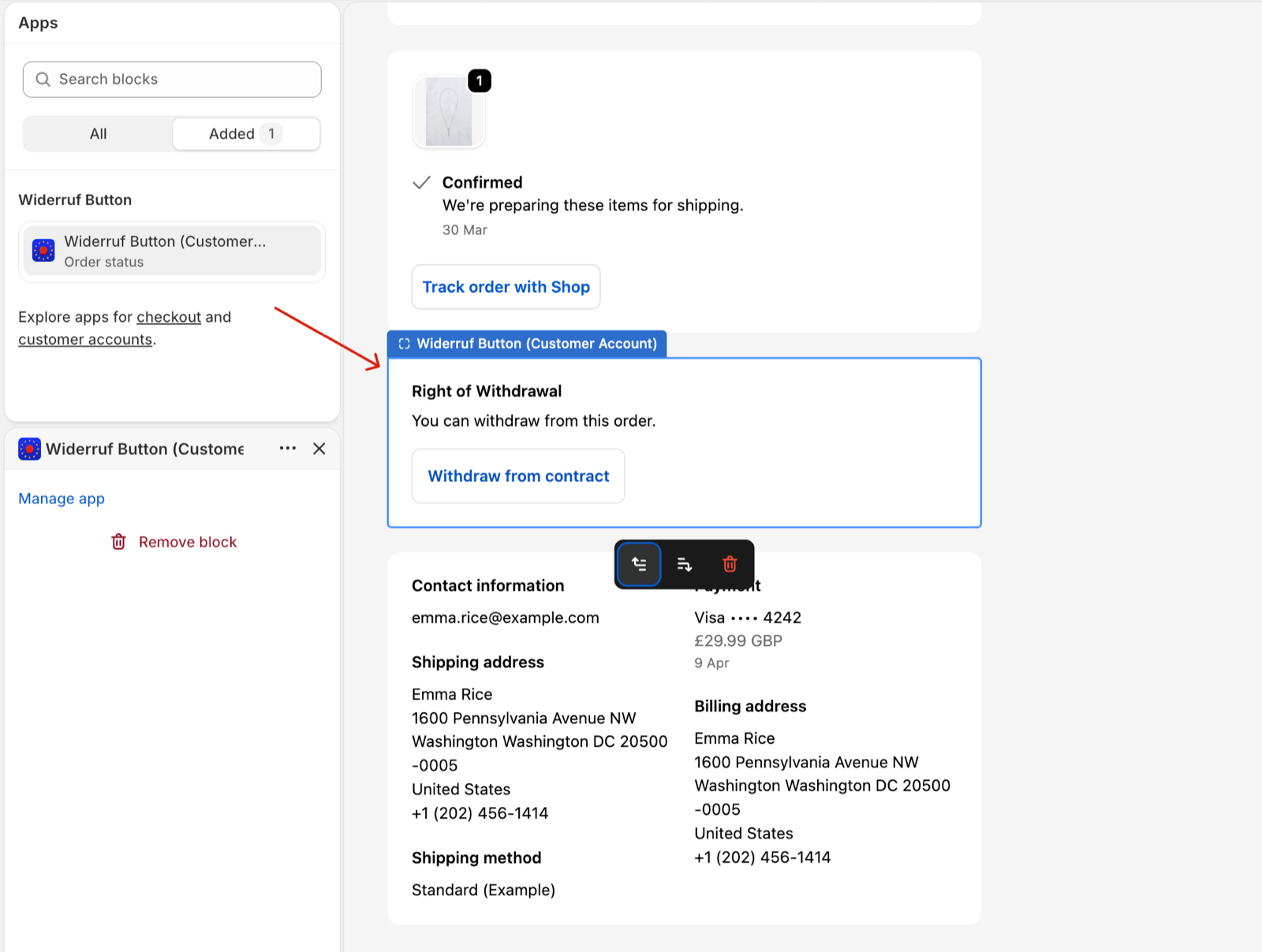
Click Save
Click the Save button in the top-right corner to publish your changes.
Result
Customers will now see a “Right of Withdrawal” notice with a Withdraw from contract button directly on their order status page.
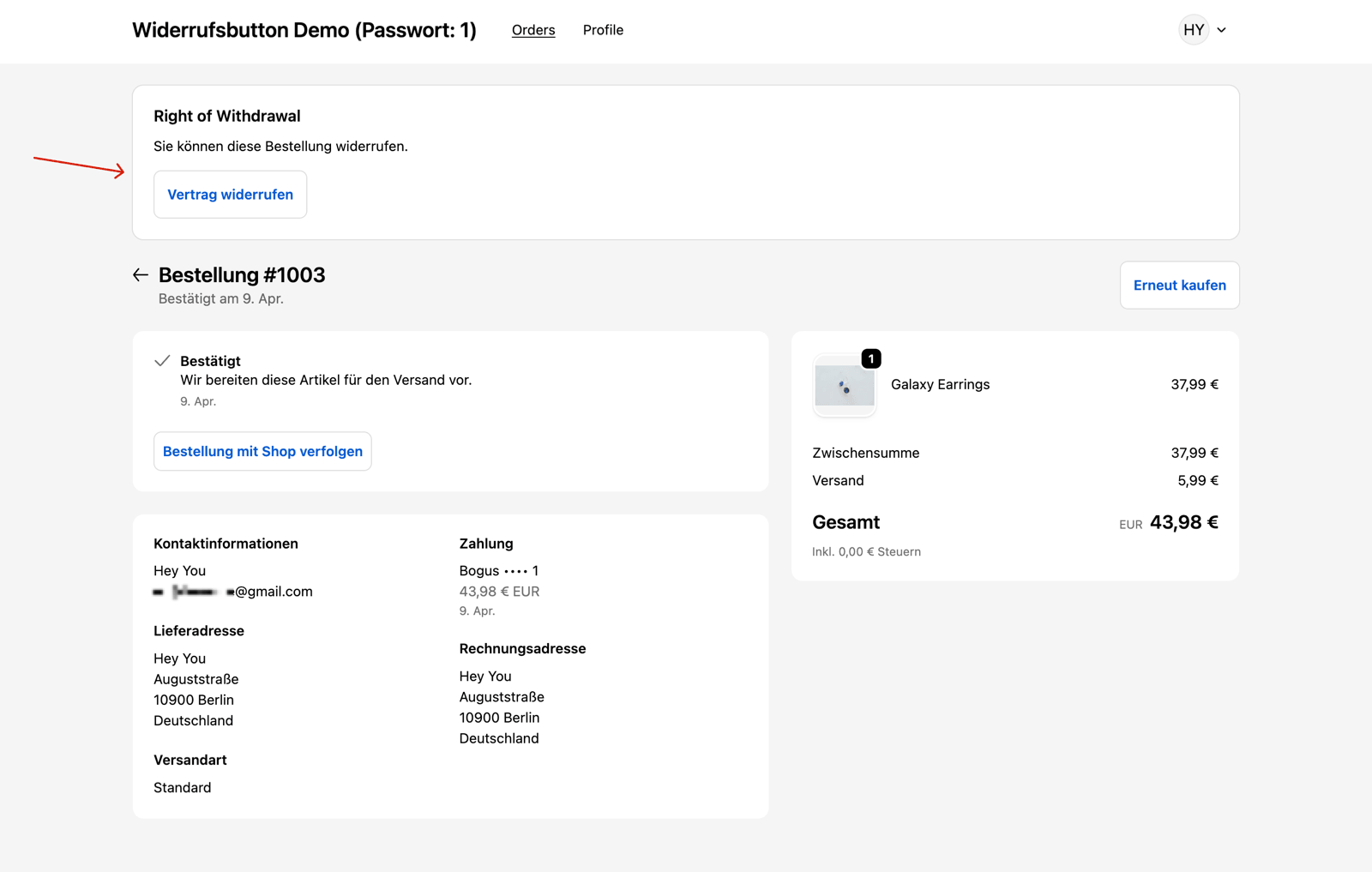
Note: Login is not required to access the order status page.
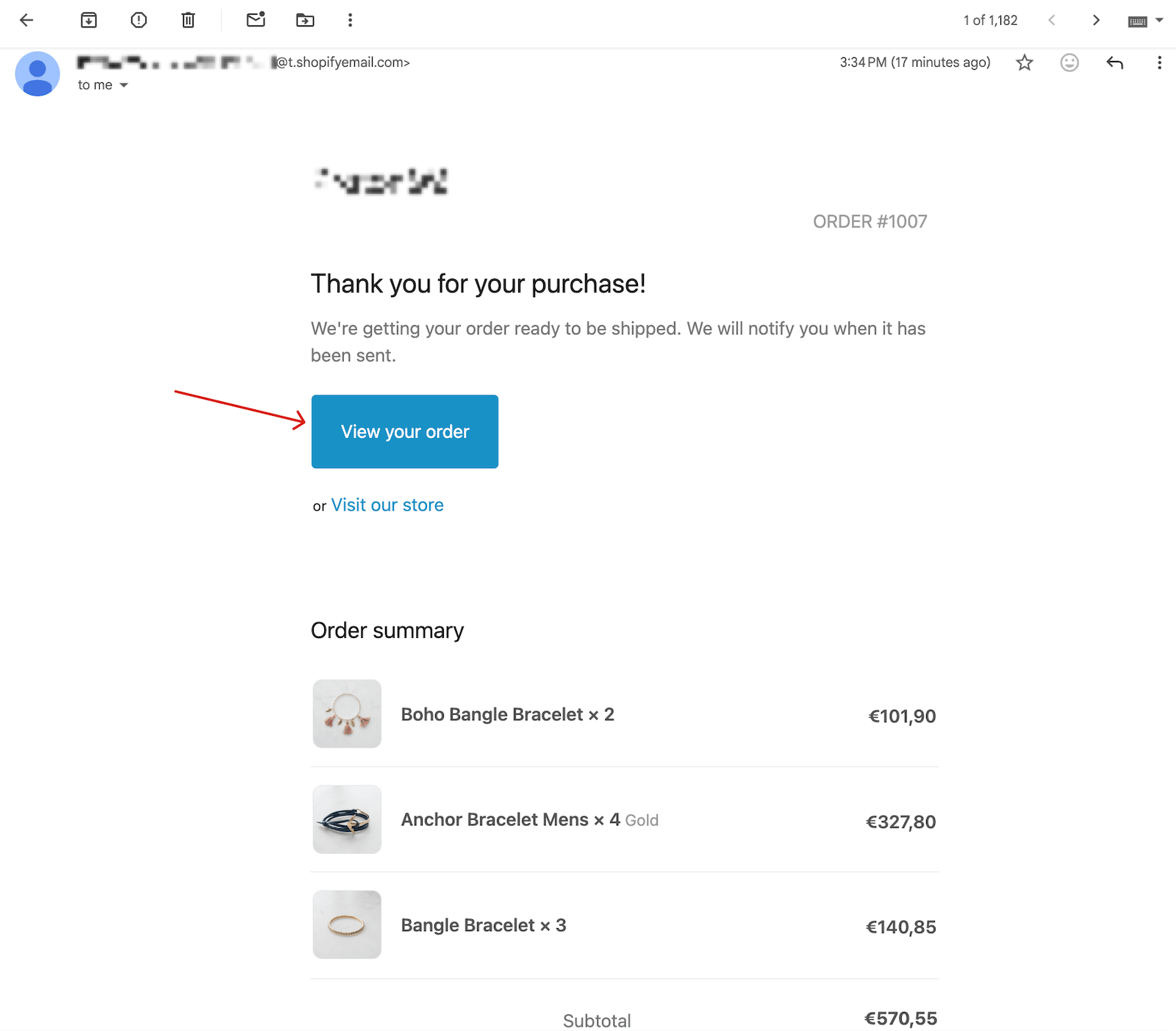
How to find the order status page? Go to order confirmation emails or shipping emails, click the default “View your order” button included in the email.
The link opens to a full order details page with the “Withdraw Order” button, requiring no login.
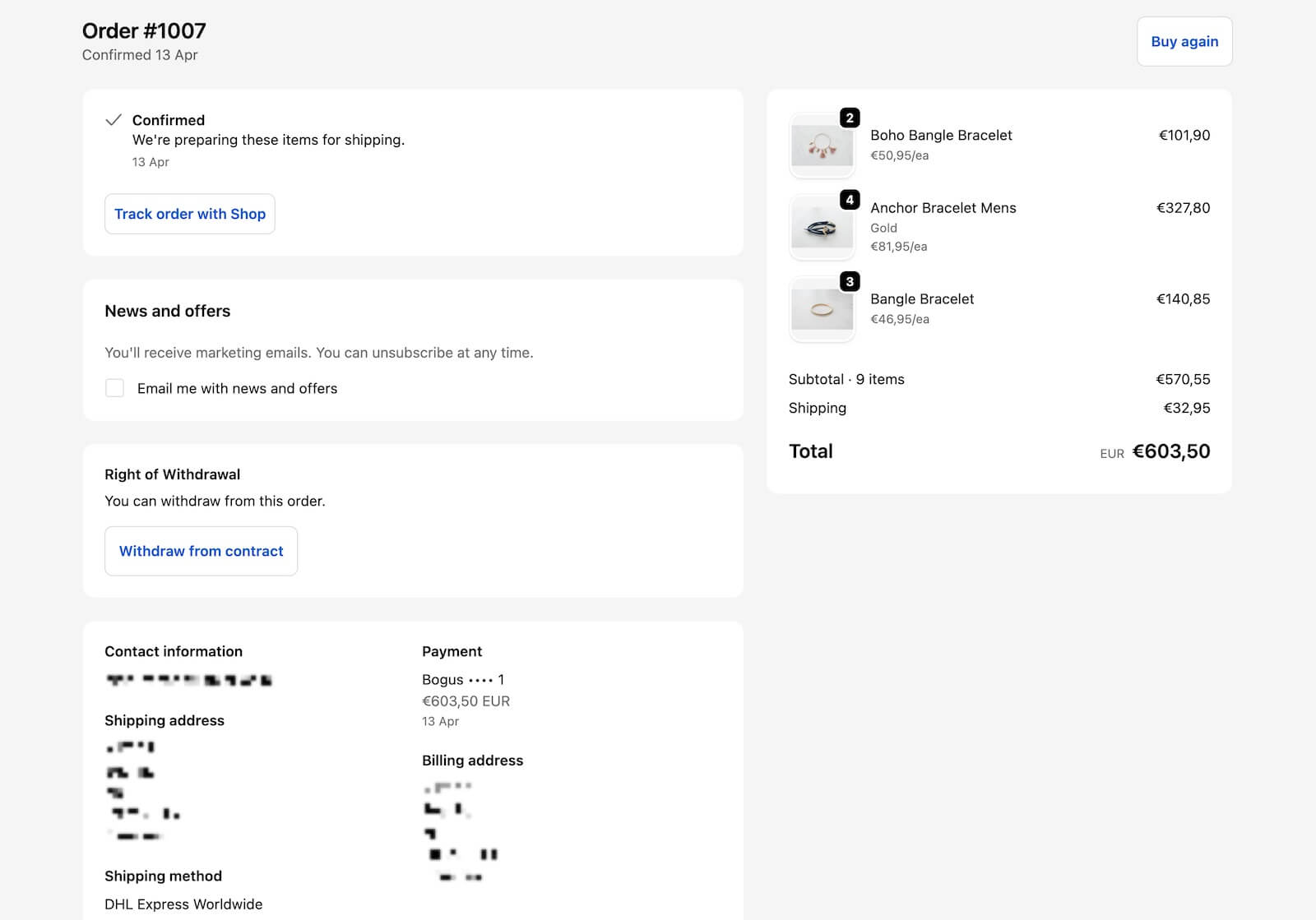
This helps keep your store compliant with EU/German consumer protection law (EU Widerrufsrecht).