
Do you need help with adding the withdrawal button to your Shopify theme? In this post, we will show you a simple step-by-step guide to doing it.
Adding a withdrawal button to your Shopify theme is essential for stores that must comply with EU consumer rights and build customer trust. A Shopify withdrawal button allows customers to easily submit cancellation or return requests directly from your store.
With the SeedGrow Widerruf Button app, you can quickly add and customize this feature without coding. In this quick guide, you will learn how to add a withdrawal button in Shopify, optimize its placement, and ensure a smooth user experience.
First, we will see what a withdrawal button in Shopify is.
Table of Contents
What Is a Withdrawal Button in Shopify
A withdrawal button in Shopify is a feature that allows customers to formally request order cancellation or contract withdrawal directly from your store.
It is especially important for merchants selling to customers in the European Union, where consumer protection laws require a clear, accessible way for customers to exercise the right of withdrawal. Instead of relying on emails or support tickets, a Shopify withdrawal button provides a structured and user-friendly method for submitting requests.
This helps store owners manage cancellations more efficiently while ensuring compliance, improving transparency, and enhancing the overall customer experience.
Why Add a Withdrawal Button in Shopify
Adding a withdrawal button to your Shopify store is more than just a compliance requirement; it directly improves how customers interact with your business.
First, it helps you meet EU consumer protection regulations by providing a clear and accessible way for customers to request order cancellations or withdrawals. This reduces legal risk and keeps your store aligned with required policies.
Second, it builds trust and transparency. When customers see a visible withdrawal option, they feel more confident purchasing from your store.
It also streamlines your support process by reducing back-and-forth emails. Customers can submit requests in a structured way, making it easier to track, manage, and respond efficiently.
Step-by-Step Guide to Adding the Withdrawal Button to Your Shopify Theme
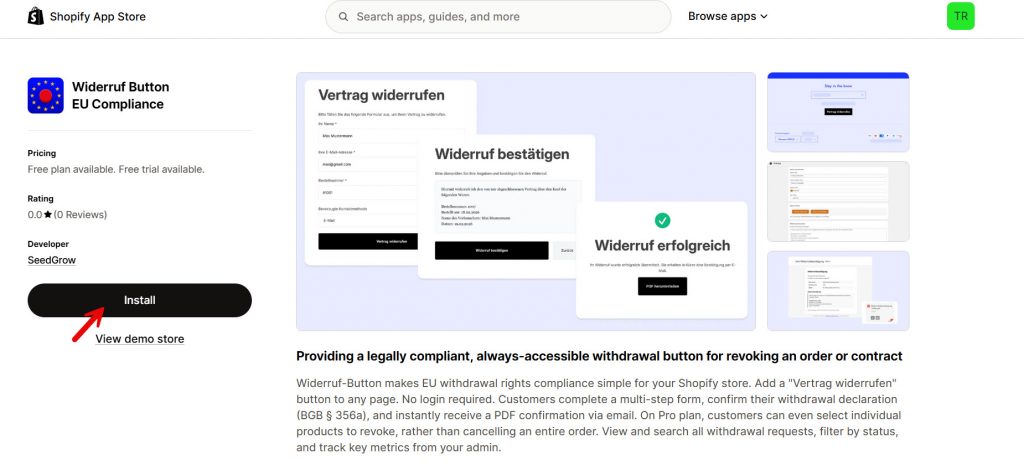
We have developed a new Shopify called Widerruf Button EU Compliance. So the first thing we are going to do is install this app on our store.
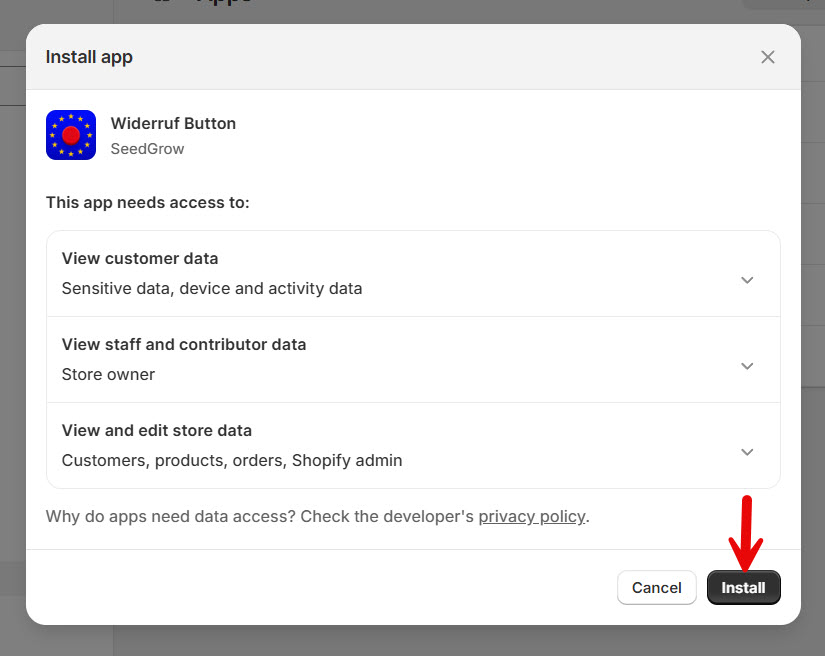
Complete the installation from the next page.
After activation, you can see the app’s setting on the left-hand side.
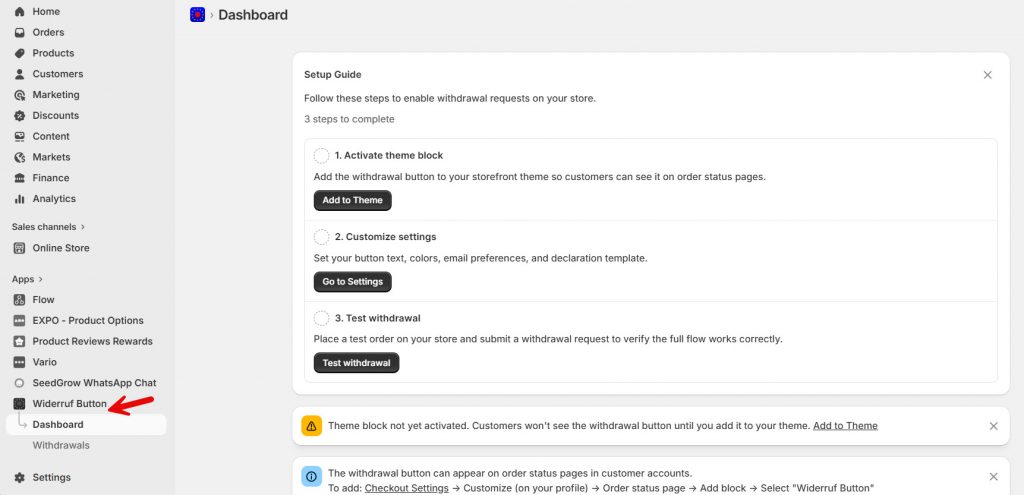
There are three steps to get you rolling:
- Activate the theme block
- Customize the settings
- Test the withdrawal
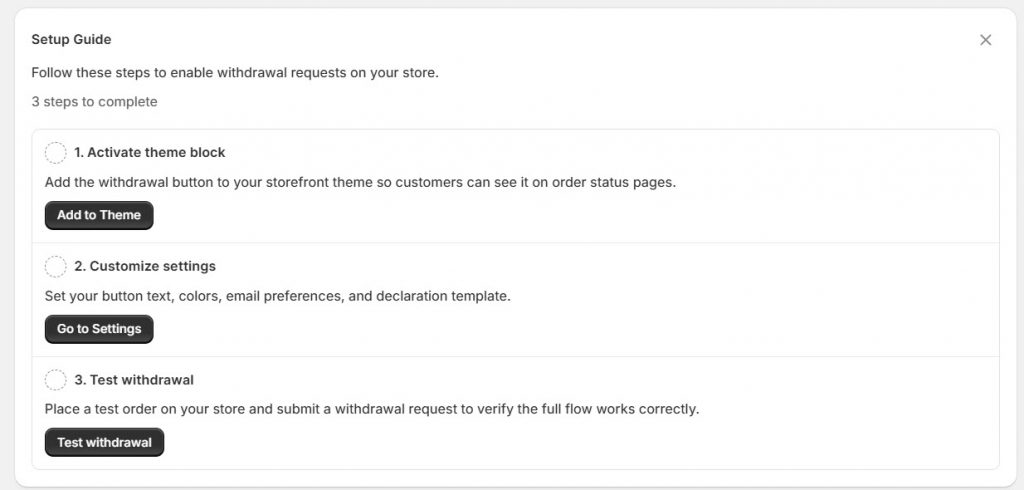
Let’s start with the first step.
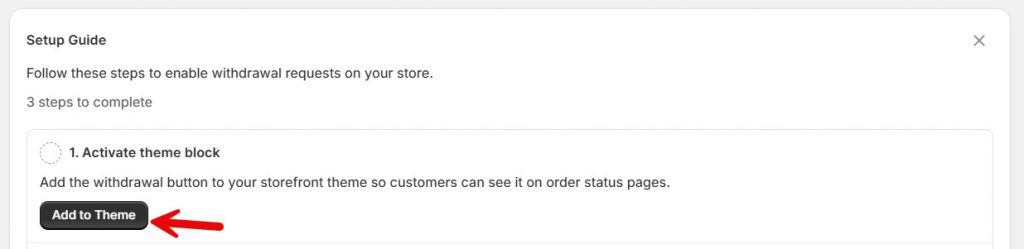
Now, Shopify will open the theme editor in a new tab. You can also see the theme block inside the editor. Using the drag and drop editor, you can move the block around as you like.
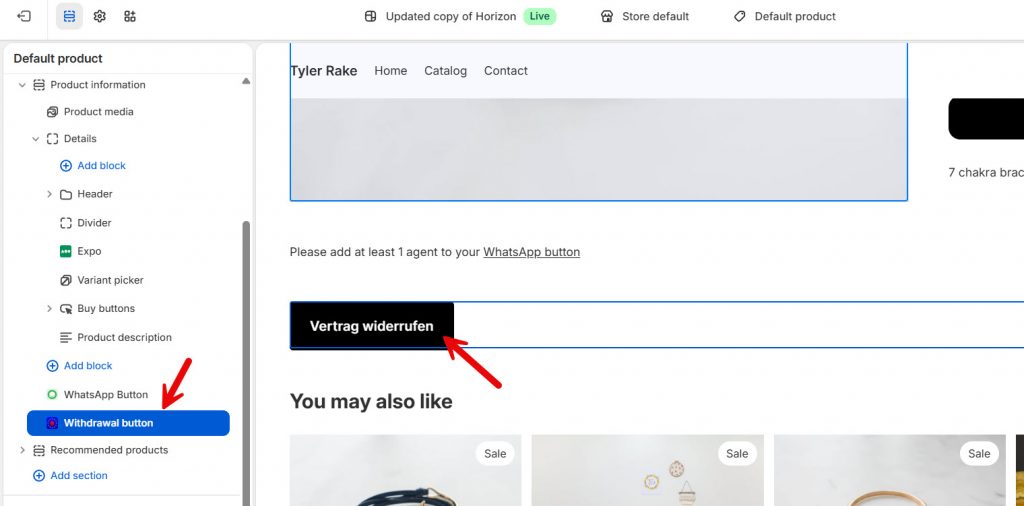
Save the changes once you are done inserting the block.
Now let’s move on to the second step: customization.
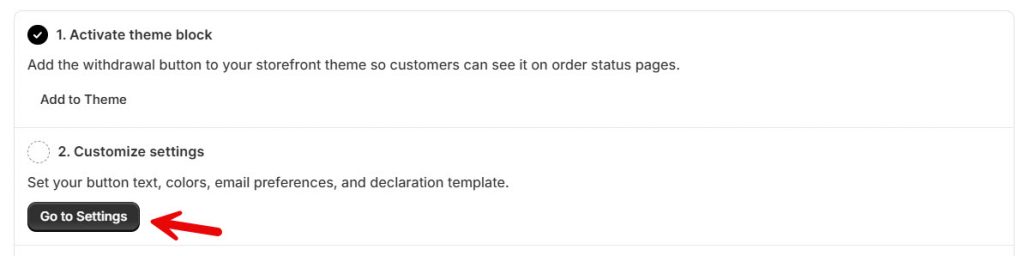
You will see many settings on the page.
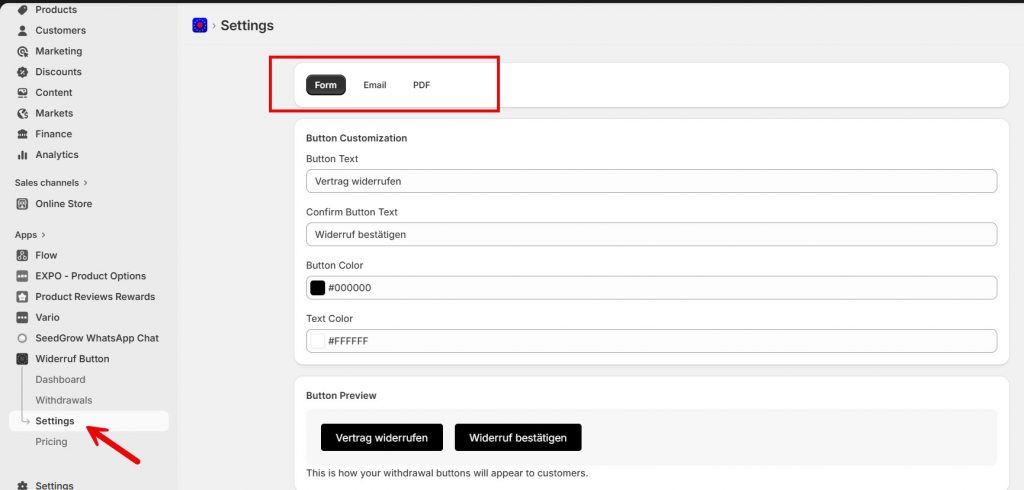
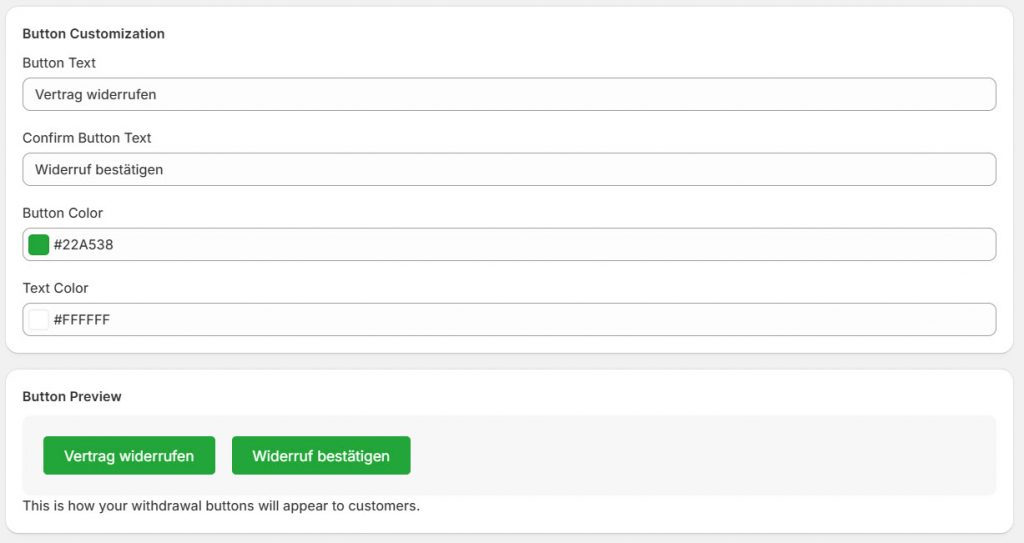
You can tweak the form, email, and PDF. The first thing you can tweak is the button. You can enter a button text, button color, and text color. The best thing about this is that you can see a live preview of the button below the customization field.
Below that, you will see the option to add additional fields to the form.
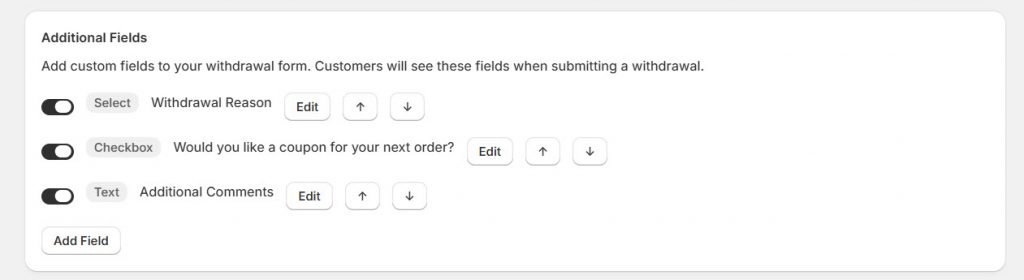
You can see several pre-added fields there. You have total control, and if you do not need them, you can disable them. If you need to add a new field, click the add field button. With the arrows, you can also rearrange the order.
Next, you have to declare the withdrawal declaration template, enable/disable partial refund and also select the language.
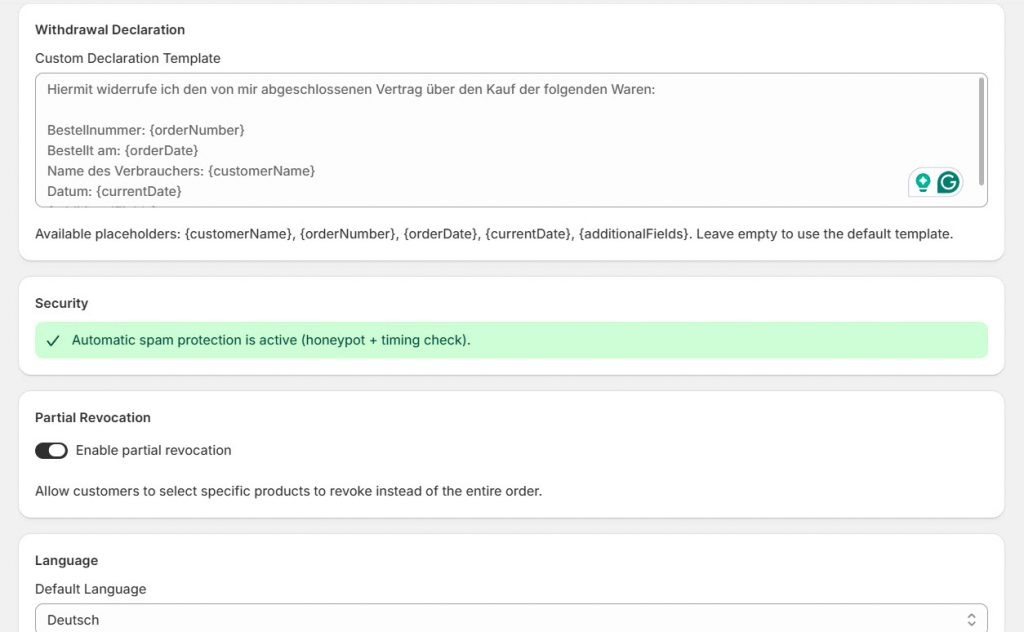
You can see multiple placeholders you can use inside the template. Use them wisely. Once you are done with the form settings, save it and move to the email options.
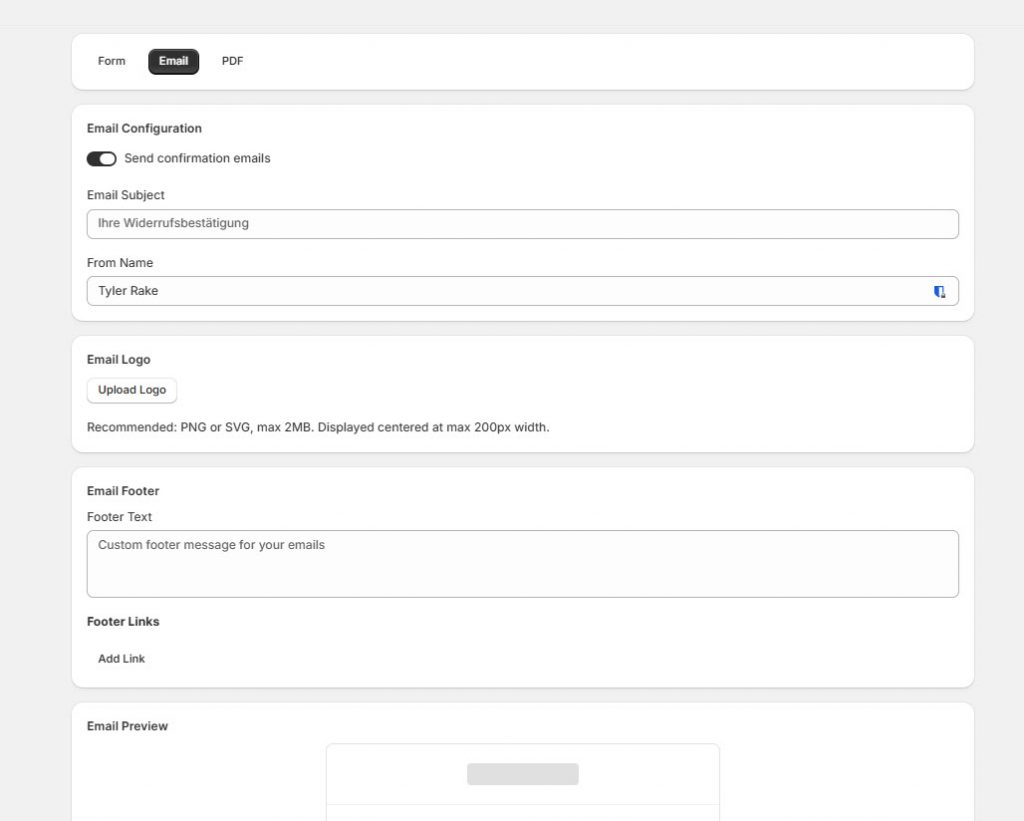
You have to tweak options such as:
- Email subject
- From name
- Logo
- Footer
- Footer link
- Domain
And so on.
You can also see a live preview of the email. So, it makes the customization simple. Once you have modified the email template as you need, move to the PDF option.
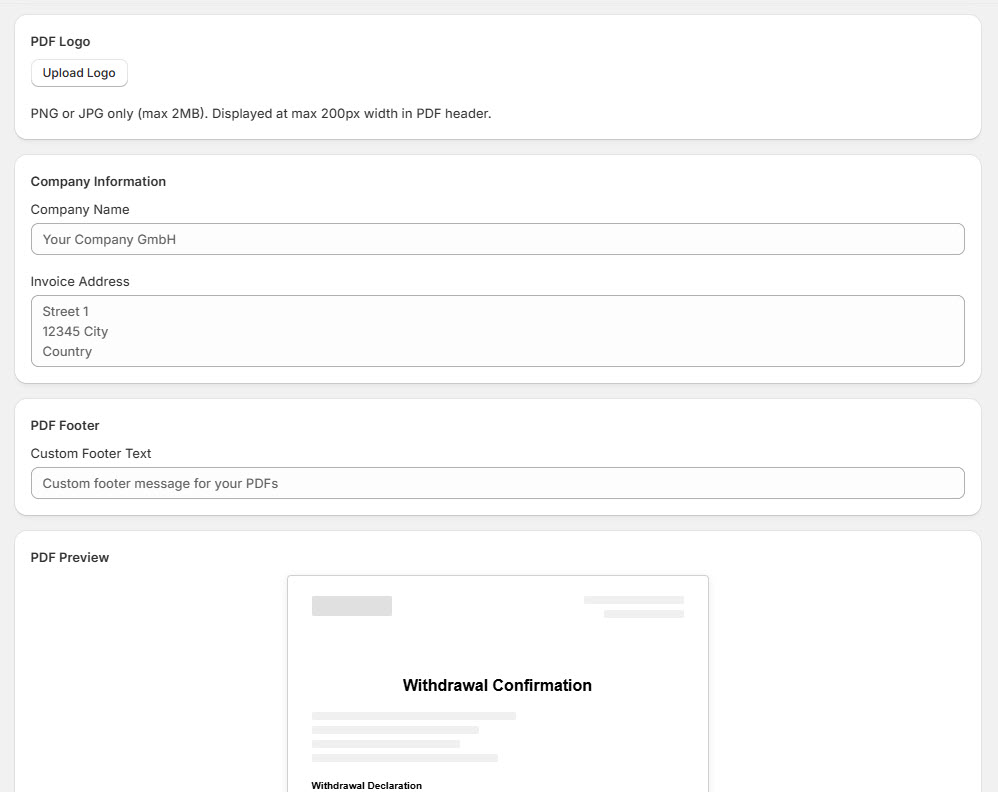
You need to tweak the
- Logo
- Company information
- Invoice address
- PDF footer
This will also give you a live preview of the PDF file. So once you are done with the customization, save everything.
Now, the final step we have is to test the withdrawal.
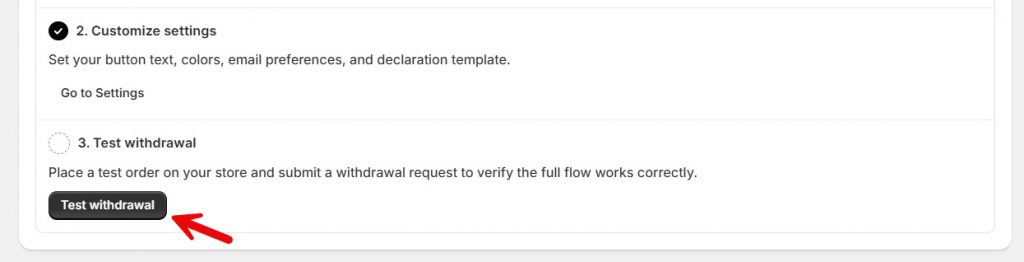
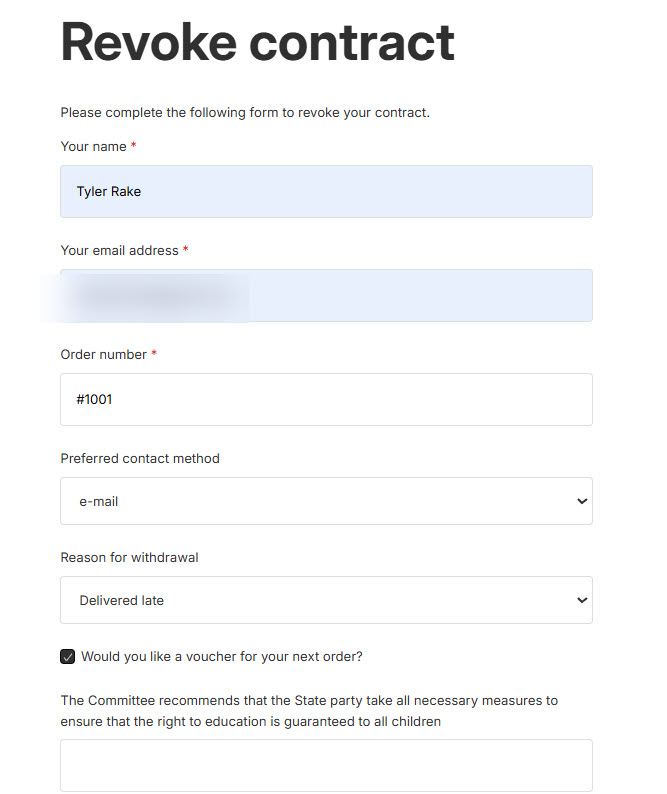
You will go to the front end of the website, visit a product, and use the block we added in the first step. Fill in the form with all the necessary details.
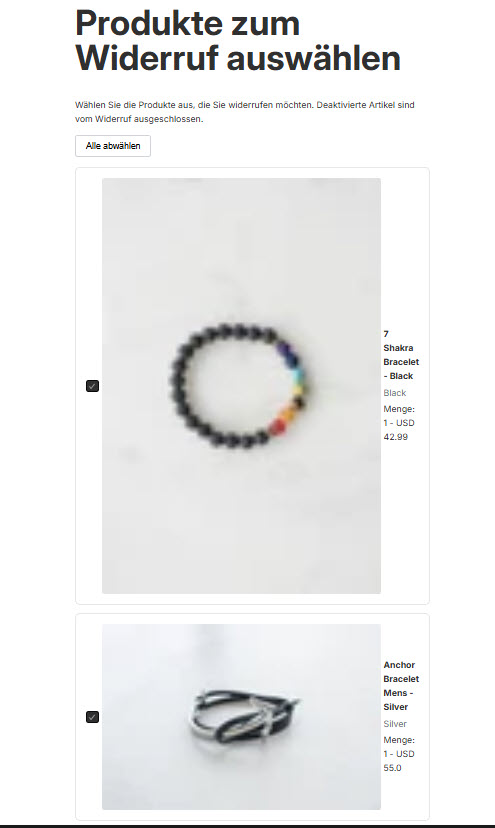
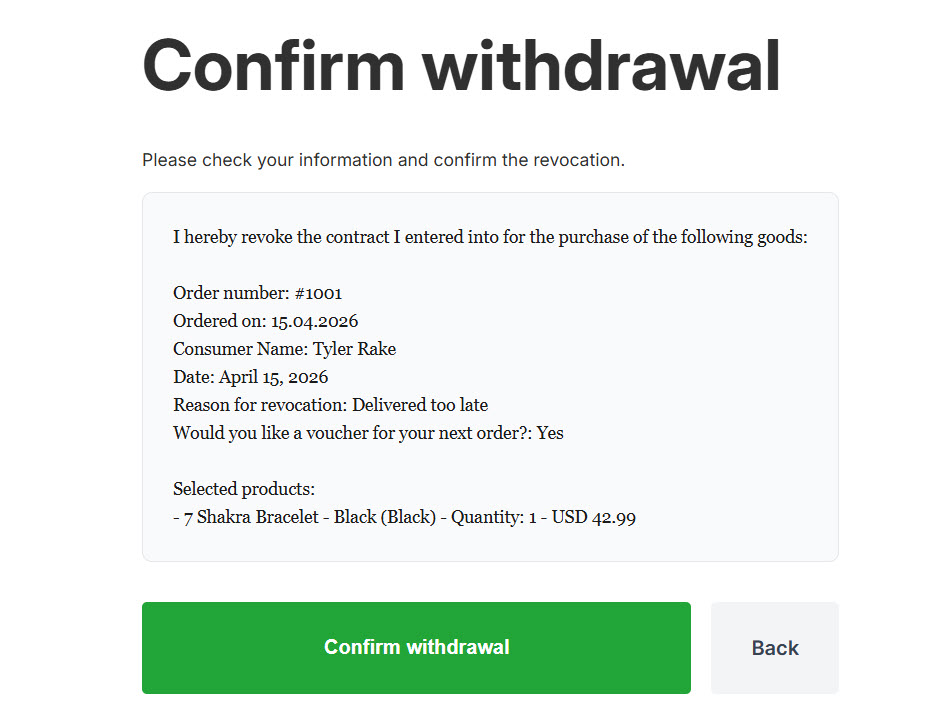
Since we allowed partial revocation, the app will tell you to select the right item.
You will see a summary and finish the process.
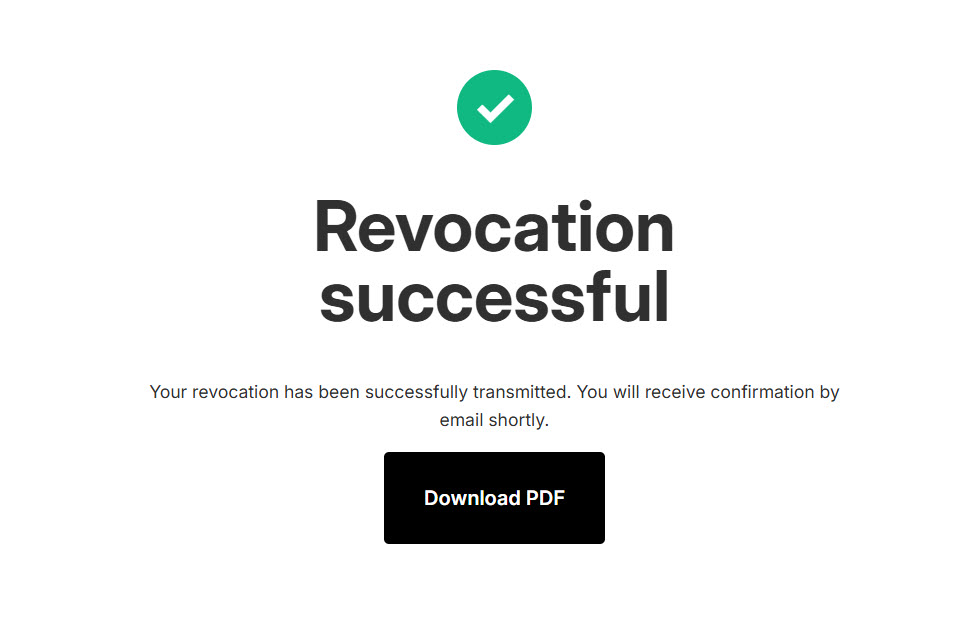
Now you will see a success message.
Now let’s see how to manage the withdrawals as a store admin. Under the app settings, you can see the withdrawals option.
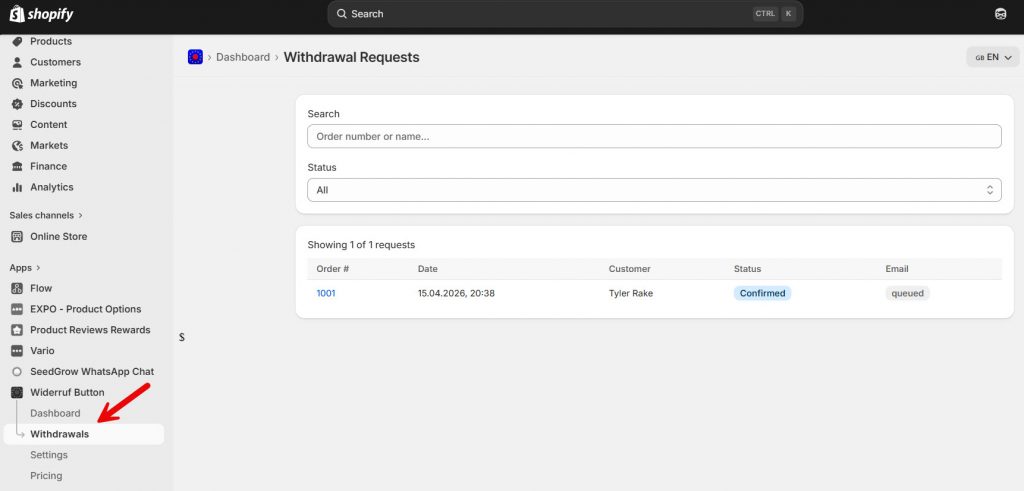
Select the order to see more details. Once you are done with the withdrawal, mark it as processed.
That’s it!
This is how you can add a withdrawal button to your Shopify theme.
Get Started with Widerruf Button EU Compliance
Frequently Asked Questions
Now, let’s take a look at some frequently asked questions and answers about this topic.
Do I need a withdrawal button for my Shopify store?
If you sell to customers in the European Union, having a withdrawal button is often necessary to comply with consumer protection regulations. It provides a clear and accessible way for customers to request cancellations, helping you avoid potential legal issues. Using the SeedGrow Widerruf Button app makes it easy to stay compliant without any technical setup.
Can I add a withdrawal button to Shopify without coding?
Yes, you can add a withdrawal button without any coding. With the SeedGrow Widerruf Button app, the entire process is simplified. You can install the app, enable the feature, and place the button on your store using the Shopify theme editor in just a few steps.
Where should I place the withdrawal button on my store?
The best placement depends on your store layout, but common areas include the footer, account pages, and order-related sections. The SeedGrow app gives you the flexibility to position the button where it is most visible and accessible to customers.
Can I customize the withdrawal button design?
Yes, you can fully customize the button to match your store branding. The SeedGrow Widerruf Button app allows you to adjust colors, text, and placement so it blends seamlessly with your Shopify theme.
What happens when a customer clicks the withdrawal button?
When a customer clicks the withdrawal button, they can submit a formal request to cancel or withdraw from an order. With the SeedGrow app, these requests are handled in a structured way, making it easier for you to review and respond efficiently.
Will adding a withdrawal button affect my store’s performance?
No, adding a withdrawal button using a well-built app like SeedGrow Widerruf Button is optimized for performance. It integrates smoothly with your Shopify store without slowing down your site.
Is the SeedGrow Widerruf Button app easy to use?
Yes, the app is designed for simplicity. Even if you have no technical experience, you can quickly set up and manage the withdrawal button. Its user-friendly interface ensures you can stay compliant and improve customer experience with minimal effort.
Conclusion
Adding a withdrawal button to your Shopify theme is not just about meeting compliance requirements; it is also about creating a more transparent and trustworthy shopping experience.
By giving customers a clear way to submit cancellation or withdrawal requests, you reduce confusion, improve satisfaction, and streamline your support workflow. With the SeedGrow Widerruf Button app, you can easily add, customize, and manage this feature without any coding.
It is a practical solution for Shopify merchants who want to stay compliant, save time, and deliver a better overall customer experience.
We hope you have enjoyed the article and learned something new. If you are looking for more similar Shopify tutorials, feel free to check out our blog. You should also check out our Shopify page for learning more about our apps.
Do you know any other ways to add compliance to your Shopify store?
Let us know in the comments.
