
Do you want to display swatches made on the collection page with Vario? If you are looking for a simple guide, keep reading this post.
Showing product variants as clean swatches on the collection page helps shoppers see color and style options without opening every product.
This reduces friction and speeds up browsing, especially on mobile. Vario is a Shopify app that turns regular variant options into color, image, and button swatches on collection pages, product pages, and the home page.
Customers can hover over a swatch to instantly preview the matching image. In this guide, you will learn how to enable and display those swatches on your collection pages so that visitors can compare options at a glance and navigate your catalog more smoothly.
First, let’s see why we should display swatches made on the collection page.
Table of Contents
Why Should We Display Swatches Made on the Collection Page
Displaying swatches on the collection page lets shoppers see color, image, and style options directly on the product grid. They can compare variants without opening every product page, reducing clicks and keeping them moving through the catalog.
With Vario, those swatches appear as clean color, image, or button options that support hover previews. This makes the collection page more useful and helps customers find the right product faster.
- Shoppers can spot available colors and styles at a glance instead of guessing from a single product image.
- Hover previews instantly show the matching variant image, so customers know what they are choosing before they click.
- Fewer product page visits mean less friction, especially on mobile where loading extra pages takes time.
- Clear swatches reduce confusion about which options are available and which are sold out.
- Customers can narrow their choices more quickly and are more likely to continue browsing rather than leave.
- The collection page becomes more interactive and useful without requiring any code changes on the store theme.
How to Display Swatches Made on the Collection Page with Vario
Since you are already looking at this Vario tutorial, I assume you have already installed and activated the app inside your Shopify store. If you haven’t, it is simple and takes only a few minutes. Once you have created the variations and displayed them successfully, you can take things to the next level.
Once you have activated the variation swatches, go to the display options. There, you can see an option to show the swatches on the collections page.
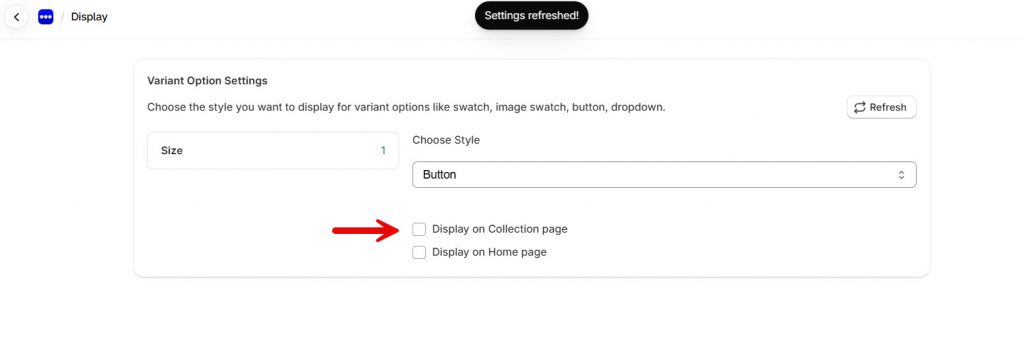
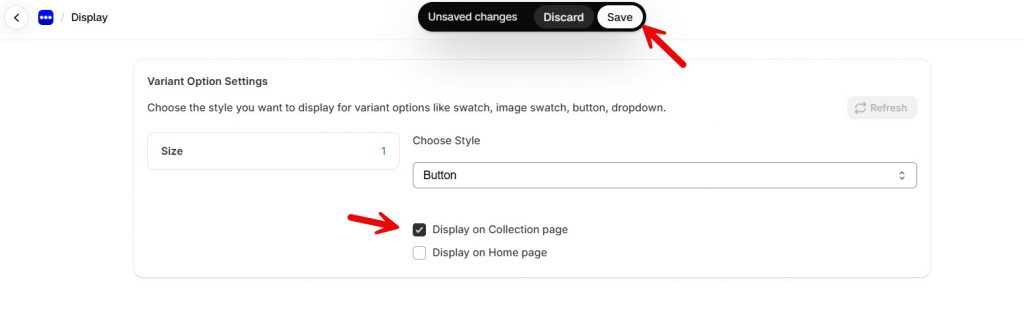
You have to enable that option and save the changes.
There are more customizations available. If you go to the Customize option and then Collection, you can do further tweaking.
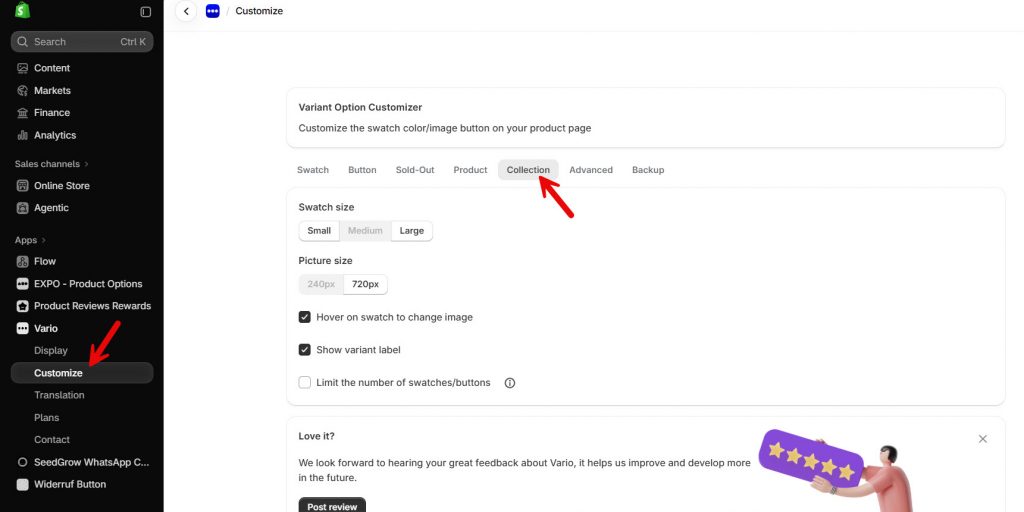
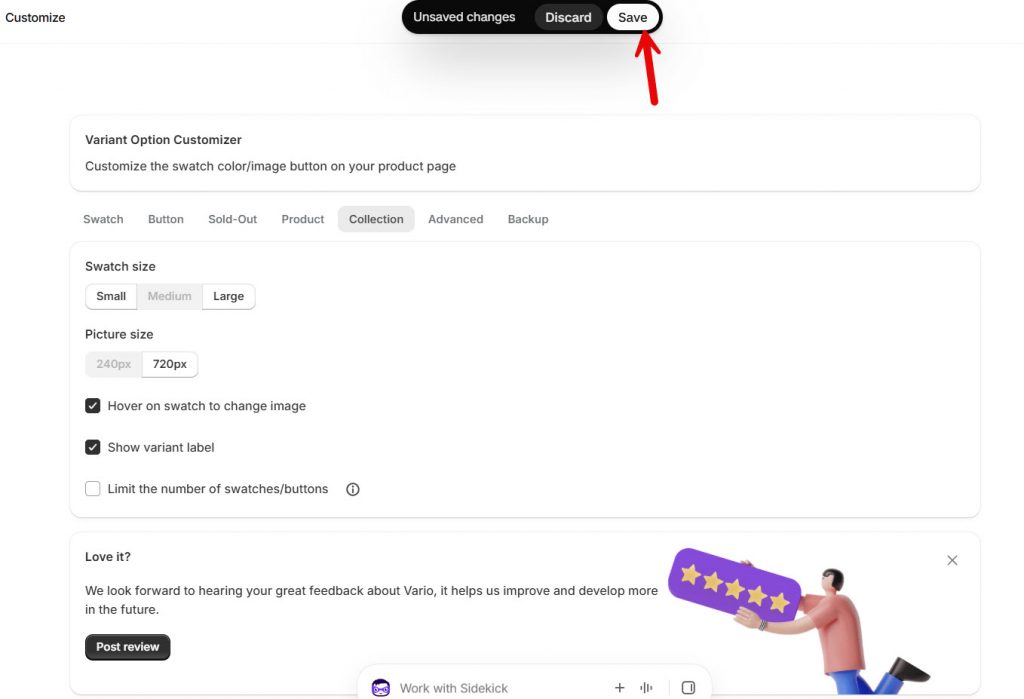
As you can see in the above screenshot, there are options like
- Swatch size
- Picture size
- Hover on swatch to change image
- Show variant label
- Limit number of swatches/buttons
All the options are self-explanatory. You can tweak them as you like and save the changes.
Now you can check your collection page from the front end. You will see the swatches there.
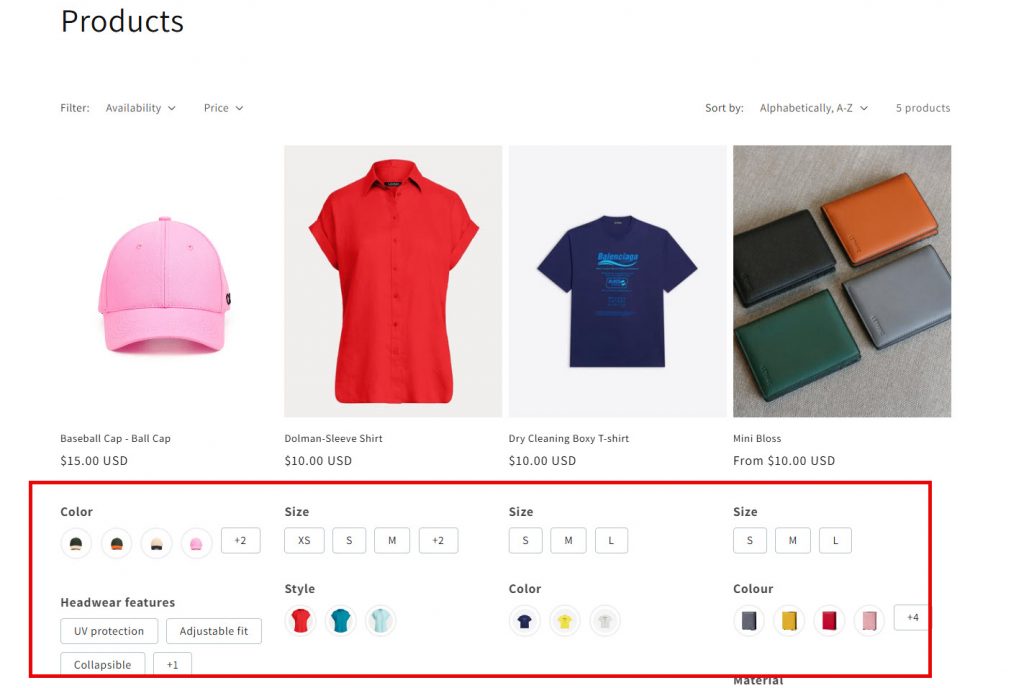
That’s it!
This is how you can display swatches made on the collection page with Vario – variation swatches.
Here are some more related articles you might be interested in:
- How to Display Swatches Made on the Collection Page with Vario
- How to Show or Hide the WhatsApp Widget on Specific Shopify Pages
- 7 Ways to Boost Shopify Store Growth with Customer Reviews
- How to Use Reward Coupons to Boost Sales Without Discounting Everything
- 5 Shopify Store Updates to Make Before Fall Shopping Season Begins
Get Started with Vario ‑ Variation Swatches
Frequently Asked Questions
Now, let’s take a look at some frequently asked questions and answers on this topic.
How do I enable swatches on the collection page with Vario?
Open the Vario app settings and turn on the option to display swatches on collection pages. Then select which variant options (such as color or size) you want to show. Vario will pull the existing product variants and display them as color, image, or button swatches on the product cards in your collection grid.
Can customers preview a variant image by hovering over a swatch?
Yes. When a customer hovers over a swatch on the collection page, Vario instantly displays the matching variant image. This helps shoppers see the exact color or style before they click through to the product page. The hover preview works on most themes that support product grids.
Does Vario work with custom themes?
Vario supports more than 80 official Shopify themes and many custom themes. If your theme uses a standard product grid, the swatches usually appear without extra work. For heavily customized themes, you may need to add a product selector class so Vario knows where to place the swatches. The app support team can help with this if needed.
How do I control the number of swatches that appear on each product card?
In the Vario settings, you can limit the number of swatches shown on product cards on the collection page. This keeps the grid clean when a product has many variants. Extra options stay available on the product page, so customers can still see the full range after they click through.
Can I customize the shape and style of the swatches?
Yes. Vario lets you adjust swatch shape, size, border, and hover effects. You can also choose how sold-out variants appear, such as strikethrough or faded. These design options apply to both collection pages and product pages so the look stays consistent across the store.
Will the swatches update automatically when I change a product’s variants?
Yes. Vario reads the variant data directly from your Shopify products. When you add, remove, or update variants in the Shopify admin, the swatches on the collection page update to match. You do not need to manually refresh anything in the app.
Do I need to create separate products for each color?
No. Vario works with regular Shopify product variants. You keep all colors and styles in a single product, and Vario displays them as swatches on the collection page. This is different from apps that require separate products for each color.
How do I ensure the correct product image appears when a customer clicks a swatch?
Vario uses the variant images already assigned in Shopify. When a customer clicks or hovers over a swatch on the collection page, the app displays the corresponding image. Make sure each variant has the right image set in the product editor so the preview stays accurate.
What happens if a variant is sold out?
Vario can mark sold-out variants with a visual style such as a line through the swatch or a faded appearance. You control this in the app settings. The sold-out indicator appears on both the collection page and the product page so customers know which options are unavailable before they click.
Can I show swatches on the home page as well as collection pages?
Yes. Vario supports swatches on the home page, collection pages, and product pages. You can enable them independently for each location. On the home page, the process is similar: turn on the setting and, if needed, set the correct product selector for your theme’s product grid section.
Conclusion
Displaying swatches on the collection page gives shoppers a clearer view of available colors and styles before they open a product.
With Vario, those options appear as clean color, image, or button swatches directly on the product grid, and customers can hover to preview the matching image. This reduces extra clicks and makes the collection page more useful, especially on mobile.
Vario works with most Shopify themes and pulls the variant data you already have in your store. You can control the look of the swatches, limit how many appear on each card, and mark sold-out options so customers see accurate information at a glance.
Once the settings are in place, the swatches stay up to date as you change products in the Shopify admin.
For stores that sell items in multiple colors or styles, this setup helps visitors compare options more quickly and navigate the catalog with less friction.
How else would you customize your Shopify store?
Let us know in the comments.
