
Do you want to show or hide the WhatsApp widget on specific Shopify pages? If you are looking for a simple article, keep reading.
A WhatsApp widget works best when it appears only on the pages where shoppers actually need it. On product pages, it can answer size or shipping questions before someone leaves the page. On checkout, it often gets in the way.
The SeedGrow WhatsApp Chat Widget lets you show or hide the button on specific Shopify pages, so the chat stays available where it helps and stays out of the way everywhere else.
This guide walks through the exact settings, the pages that usually convert best, and the mistakes that make the widget less effective. You can set the rules in a few minutes and test them right away.
First, let’s see why you should show or hide the WhatsApp widget on specific pages.
Why Show or Hide the WhatsApp Widget on Specific Pages
A WhatsApp widget is useful only when it appears at the right moment. On a product page, a shopper may need a quick answer about size, stock, or shipping before they add the item to the cart. On the checkout page, the same button can distract from payment and lower the chance they finish the order.
Showing the widget everywhere treats every page the same way, even though the intent differs. Hiding it on low-value pages and keeping it on high-intent ones keeps the experience cleaner. The SeedGrow WhatsApp Chat
Widget lets you set these rules by page, so the button shows up where questions are likely and stays out of the way where they are not. You can also match the prefilled message to the page, which makes the first reply more relevant.
Best Pages to Show or Hide the Widget
Different pages serve different goals, so the widget should not appear the same way on all of them. Product and collection pages are where shoppers usually have questions. Cart and checkout should be kept clear so people can complete the purchase. Use the table below as a starting point, then adjust it for your own store.
| Page type | Recommendation | Reason |
|---|---|---|
| Product pages | Show | Shoppers often need answers on size, stock, or shipping before buying |
| Collection pages | Show | Visitors comparing products may want quick help |
| Homepage | Show | General entry point for questions about the store |
| Cart | Hide or keep minimal | Avoid distraction while they review the order |
| Checkout | Hide | Keep the focus on payment and reduce drop-off |
| Blog or content pages | Optional | Show only if the page itself invites questions |
| Account or login pages | Hide | Low chance of useful chat conversations |
How to Show or Hide the WhatsApp Widget on Specific Shopify Pages
Since you are looking at how to hide or show the widget, we assume you already installed and configured the app on your Shopify store. If you haven’t done it. It is simple and takes only a few mouse clicks.
Once the basic configurations are done, go to the floating widget display option.
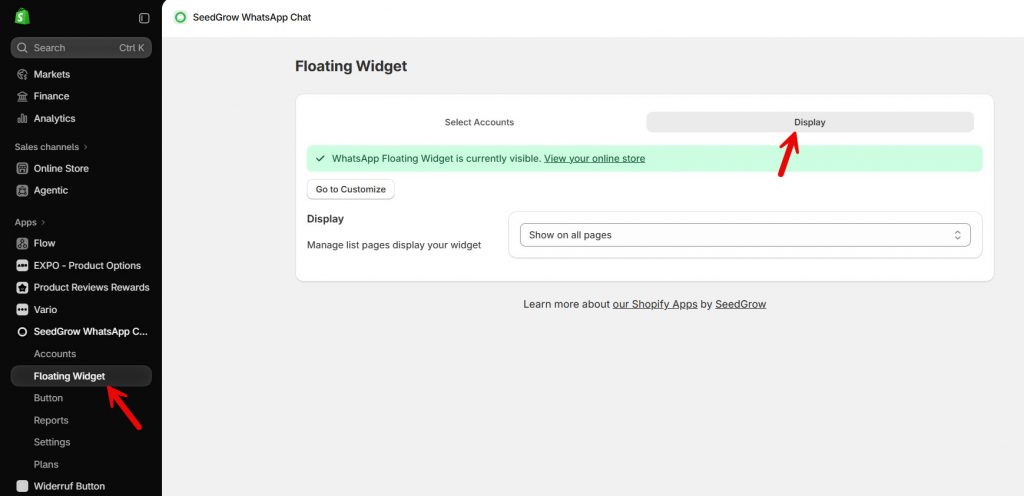
Under the display option, you can see a dropdown with three options.
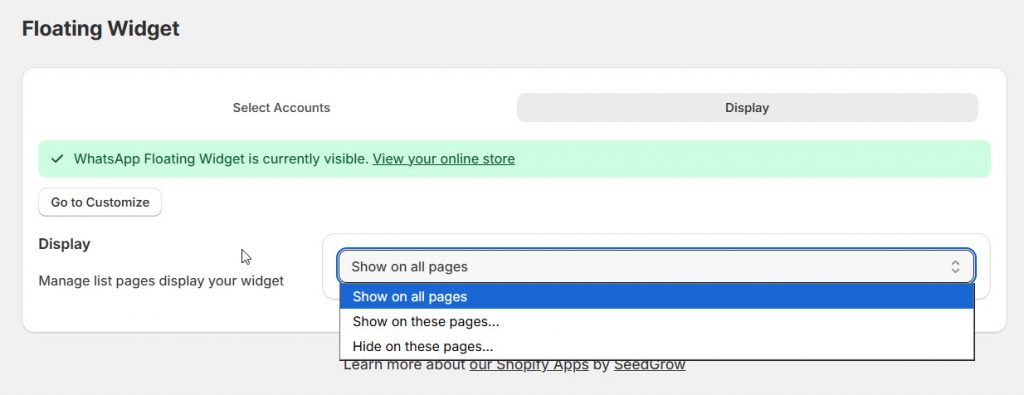
- Show on all pages
- Show on these pages
- Hide on these pages
If you select the first option, the widget will be visible on all pages. If you need to limit the visibility, you have to select the second or third option.
As the name suggests, if you select the “show on these pages” option, you can limit where the floating widget can be displayed.
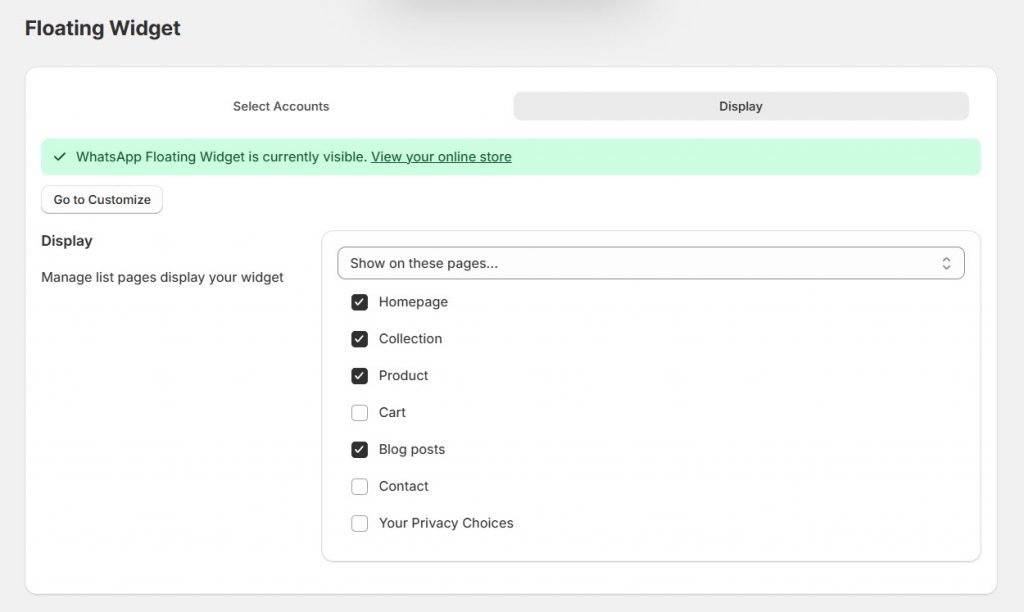
Select the pages you need to display the floating widget and then save the changes. The same goes for the hiding option.
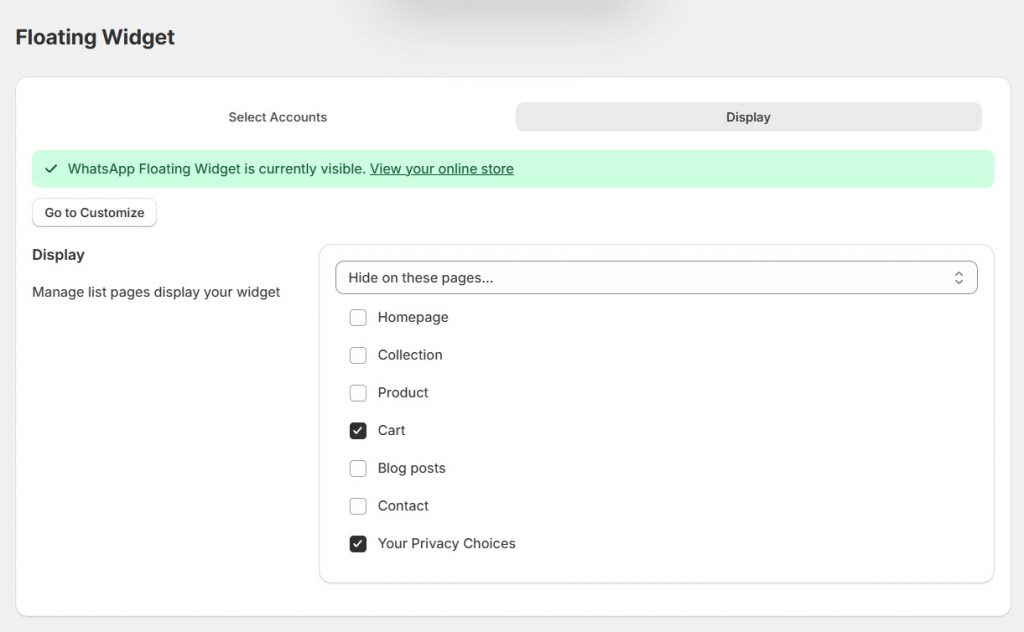
Save the changes and check your website from the front end. Based on the new configuration, the floating widget will be displayed.
That’s it!
This is how you can show or hide the WhatsApp widget on specific Shopify pages.
Get Started with SeedGrow WhatsApp Chat Widget
Common Mistakes When Controlling Widget Visibility
Many stores either leave the WhatsApp widget on every page or hide it too aggressively. Both approaches reduce results. The goal is to keep the button available where questions are likely and remove it where it gets in the way of the purchase.
- Showing the widget on checkout. It competes with the payment button and can increase the number of abandoned checkouts. Hide it so the focus stays on finishing the order.
- Hiding it on all product pages. You lose the highest-intent place for questions about size, stock, or shipping. Keep it visible on product pages and test the prefilled message.
- Using the same prefilled message across all pages. A product-page message should mention the product or a common question. A homepage message can stay more general.
- Forgetting to check mobile. A widget that looks fine on desktop can cover the add-to-cart button on a phone. Preview both sizes and adjust the position if needed.
- Never reviewing the rules after a theme or page change. New collections, landing pages, or blog posts often need their own include or exclude setting.
- Running multiple agents without clear page rules. Visitors may see the wrong person or too many options. Match agents to the pages where they are most useful.
Here are a few related articles that will help you optimize your Shopify store:
- How to Display Swatches Made on the Collection Page with Vario
- How to Show or Hide the WhatsApp Widget on Specific Shopify Pages
- 7 Ways to Boost Shopify Store Growth with Customer Reviews
- How to Use Reward Coupons to Boost Sales Without Discounting Everything
- 5 Shopify Store Updates to Make Before Fall Shopping Season Begins
Frequently Asked Questions
Now, let’s take a look at some frequently asked questions and answers on the topic.
Can I show the WhatsApp widget only on product pages?
Yes. Most apps let you include or exclude specific pages. Product pages are the best place to keep it visible because shoppers often have questions about size, stock, or shipping. The SeedGrow WhatsApp Chat Widget includes this page control in the free plan, so you can show the button on product pages and hide it everywhere else with a few clicks.
Should I hide the widget on the checkout page?
Yes. The checkout page should stay focused on payment. A floating button can distract shoppers and raise the chance they leave. Hide it on cart and checkout, then keep it active on product and collection pages where questions are more useful.
Can I use different prefilled messages on different pages?
Yes. A product page message can mention the item or a common question. A homepage message can stay general. This makes the first reply feel more relevant. In the SeedGrow app, you set a prefilled message for each agent, then use page rules so the right agent and message appear on the appropriate pages.
Does the widget work on mobile and desktop?
Yes. Most Shopify WhatsApp widgets are responsive. Still, check both sizes. On a phone, the button can cover the add-to-cart area if the position is wrong. Preview the page on mobile after you set the display rules and move the widget if needed.
Can I show the widget on collection pages but not the homepage?
Yes. Page rules let you include collection pages and exclude the homepage, or the other way around. Test both. Collection pages often work well because visitors are comparing products and may need a quick answer before they click through.
Will hiding the widget on some pages affect my conversions?
It usually helps. Showing the button only where shoppers have questions keeps it useful. Leaving it on every page, including checkout, can hurt more than it helps. Start with product pages, measure clicks, then expand or reduce the list based on results.
Can I run more than one agent and show them on different pages?
Yes. Some stores use one agent for product questions and another for general support. You can assign agents to specific pages so visitors see the right person. The SeedGrow WhatsApp Chat Widget supports multiple agents and lets you control which pages each one appears on.
Do I need a paid plan to control which pages show the widget?
No. Page visibility is available in the free version of most WhatsApp chat apps, including SeedGrow. The free plan already lets you show or hide the widget on specific pages. Paid plans usually add extras such as custom working hours or advanced styling.
What happens if I add a new page later?
The new page will follow your current rules. If you set the widget to show only on selected pages, the new page stays hidden until you add it. If you set it to show on all pages except a few, the new page will display the widget. Review the list after you publish new collections or landing pages.
Can I hide the widget for certain products only?
It depends on the app. Basic page rules usually work at the page-type level (all products). For tighter control, you may need to exclude individual product pages or use the custom snippet. You can get in touch with customer support to request a snippet that excludes the WhatsApp chat widget from specific products.
Conclusion
Controlling where the WhatsApp widget appears keeps it useful without getting in the way. Show it on product and collection pages where shoppers have questions, and hide it on cart and checkout so the focus stays on finishing the order.
The SeedGrow WhatsApp Chat Widget lets you set these page rules quickly, and the free plan already includes the option. Start with product pages, check how it looks on mobile, and adjust the prefilled message so the first reply feels relevant.
A few minutes of setup can make the button more helpful and less distracting for the rest of the store.
How else would you improve customer satisfaction?
Let us know in the comments.
